Usage Reports
What is a Usage Report?
PDF-A files are the globally accepted standard for archiving electronic documents, enabling the consistent viewing of documents in their original format across various software platforms.
Standards PDF’s (Portable Document Format), are a standardized electronic document format which facilitates a reliable presentation and exchange of documents. The appended ‘A’ stands for ‘Archival,’ underlining PDF/A’s commitment to preserving content in its original form and prohibiting features unsuitable for long-term archiving.
Incorporating all elements of a document, including content, fonts, and colour information within the file, ensures that the document retains its original appearance and can be faithfully reproduced, regardless of the device used.
Usage Report Page Features
- Saved Reports: Clicking this button will give you a pop up listing the reports you have already run.
- Filter Results: This dropdown menu allows you to filter the results by a preset period of time. When you run one of these filters the results will not include the day you are making the request. The preset time periods are:
- Yesterday (the day prior)
- Last 7 Days (the previous 7 days not including that day)
- Last 30 Days (the previous 30 days, up to the day prior)
- Quarter to Date: Quarters are based on the calendar year, Jan-Feb, March-May, June-Sept, and Oct-Dec. If you are running this report August 8th you will receive a report for the dates of June 1 to August 7th.
- Last Quarter: (will run the quarter prior to the one you are currently in)
- Year to Date: This will run from January 1st to the day before you are running the report.
- Subscription Period to Date: This will run a report from your subscription start date (or last renewal date) to the day before you are running the report. If you are paying monthly you will receive only up to the previous 30 days. If you are yearly it will go back up to 364 days depending on when you are running it.
- Date to / Date From: If the Filter Results menu does not suit your need, these fields allow you to run a report for a specific timeframe that you require.
- Run: This button will send the request for the report to be generated. Once complete you will receive an email letting you know it is ready for viewing.
- Document Total: This is the number of documents that have been cancelled, or cancelled and then resent, after they had been sent out for signature during the selected timeline.
- Download CSV: gives you the opportunity to download and export the report to a CSV file.
- Report: This is where your report will appear. The information that will be included in the report are:
- Document Title: The name of the document package that was cancelled.
- Sender: This will contain the email address (username) of the team member who sent the document and then cancelled it.
- Recipient: This field contains the email address of the recipient the document was sent to for signature. If there was more than one signer in the workflow, this field would contain the email address of only the first signer.
- Cancellation Reason: This contains the reason the sender documented as the reason for cancelling the document.
- Last Time Modified: This is the date and time the document was cancelled.
How to Run a Usage Report?
*Note: Available for enterprise plans. (Inquire with sales about enabling this feature.)
To save documents as a PDF/A file once it is completed, open Signority, then navigate to the ‘Admin Console’ and go to ‘Settings.’ The Global Settings pop-up will appear, and under the ‘Document’ section, select the dropdown for ‘PDF type output for finalized documents’. Choose PDF/A-2b and click save in the top right.
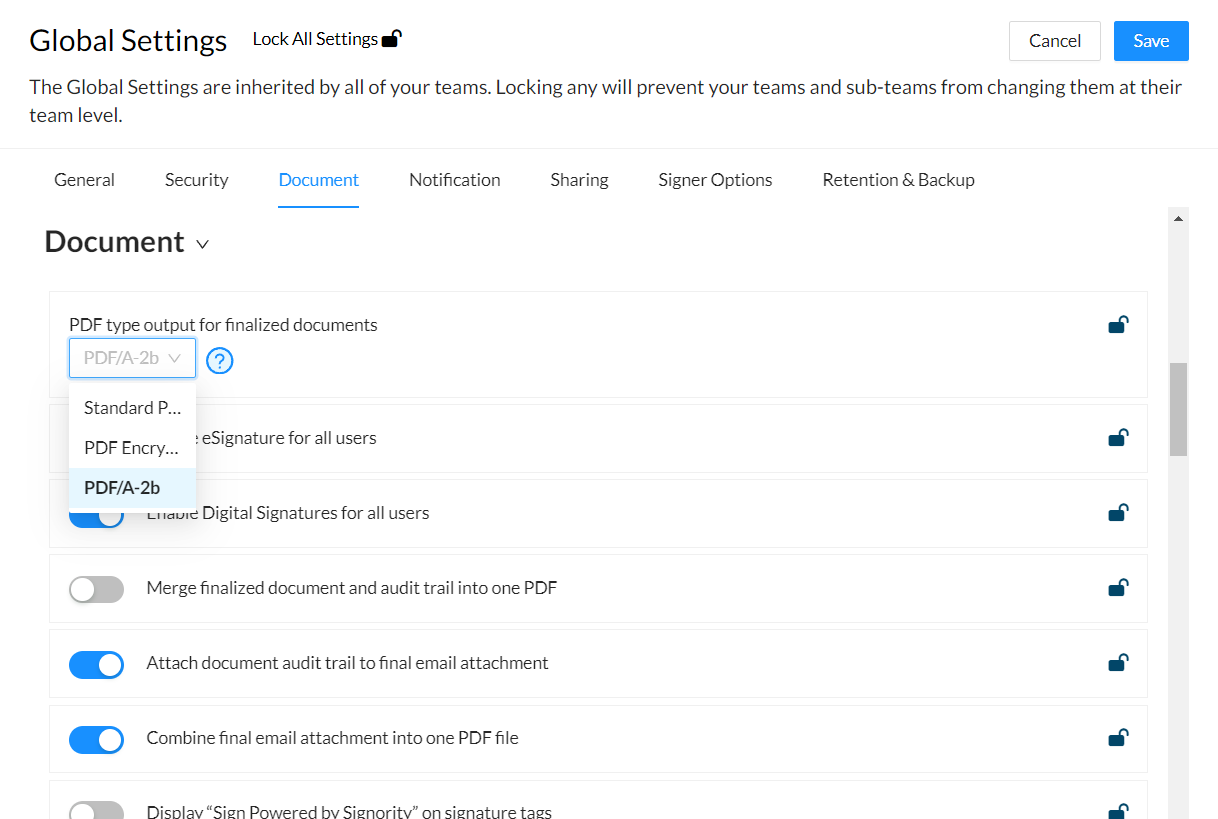
Your documents will now be saved as a PDF-A once they are finalized.
