
Customize Signing Order When A Recipient Rejects the Document
Role(s): Individual User, Team Admin, Super Admin
By default, if a recipient rejects the document, Signority will automatically continue the workflow by sending the document to the next recipient. However, you can also choose to cancel the document and choose if you want to send an email notifying the signers or not.
- To do this, open Global Settings (For team admins this is in the admin console under Settings)
- Under Signer Options select the dropdown for “Signing flow behavior when a recipient rejects:”
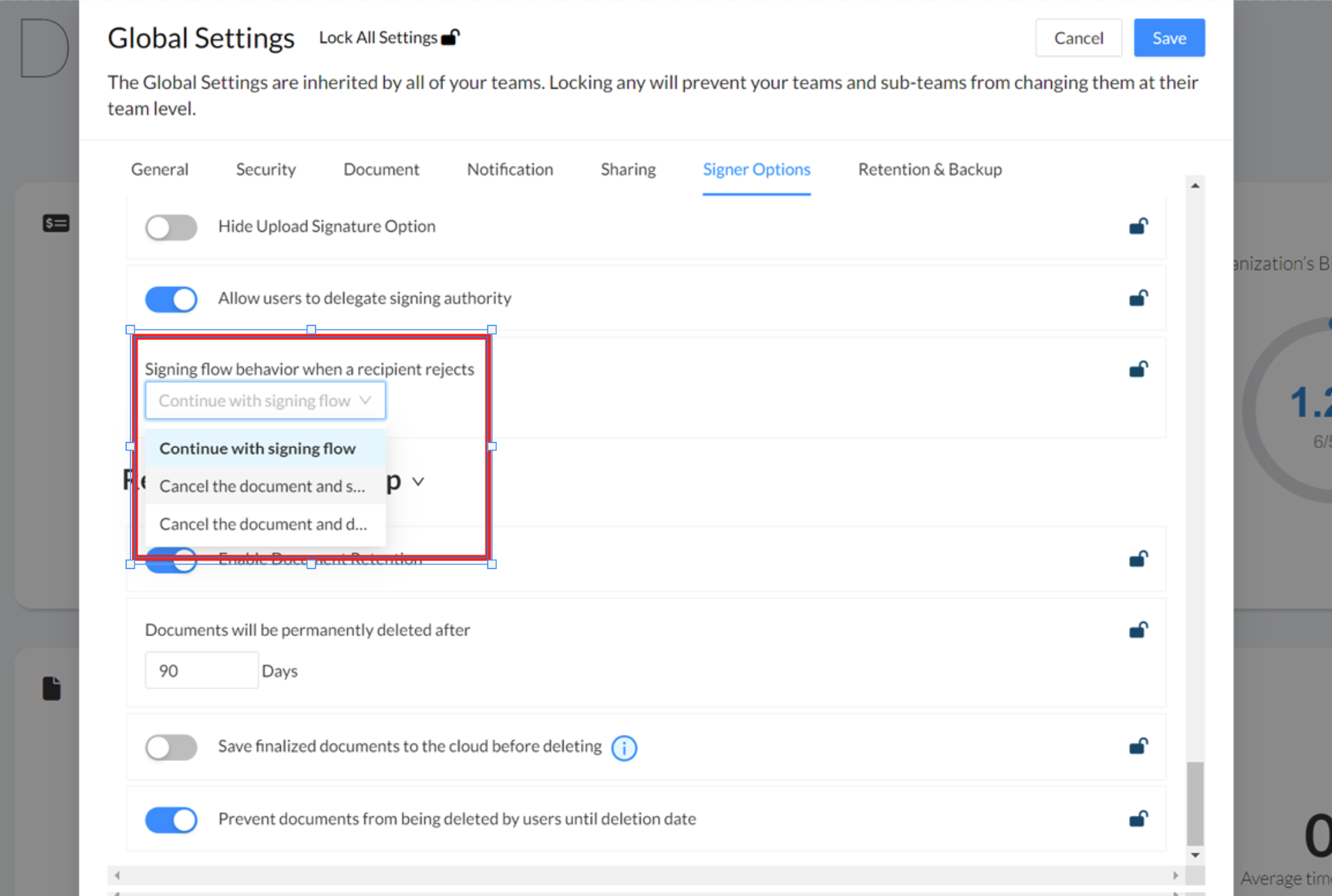
- Choose what workflow you would like to happen if a recipient rejects the document
- Continue with signing flow
- Cancel the document and send an email notifying the signers
- Cancel the document and do not send an email to the signers
- Select Save
Note: When “Cancel the document….” is chosen, the cancellation reason will be automatically generated as “Rejected by {{email of recipient}}”
