How to Edit a User

Available with: Team Plans            Role: Super Admin, Team Admin

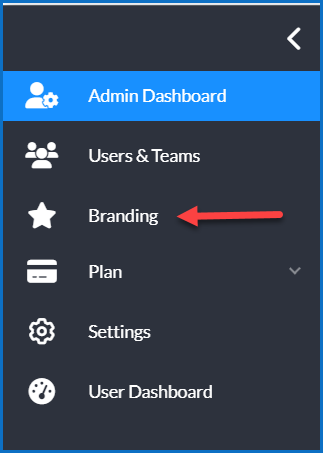
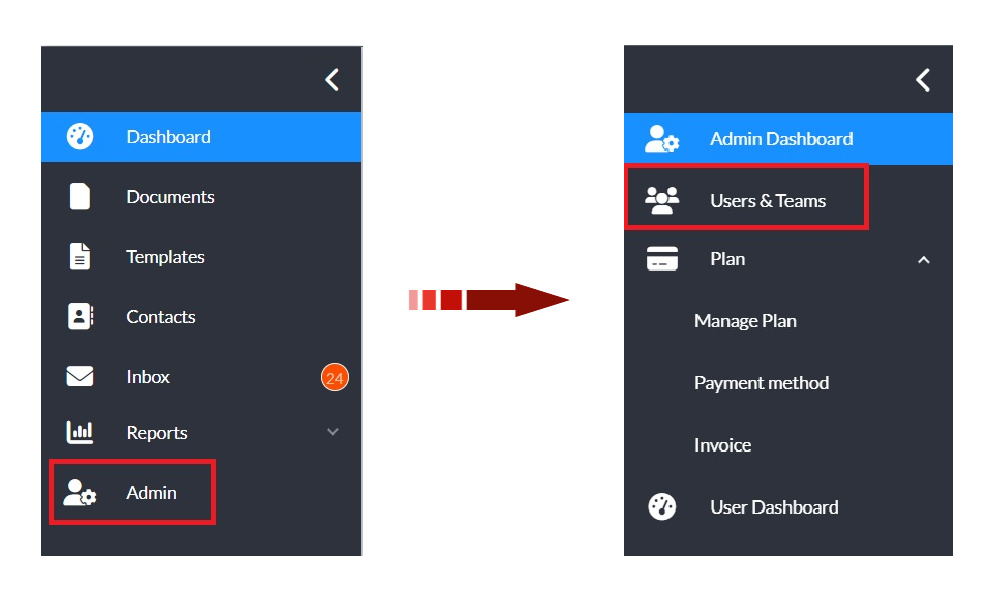
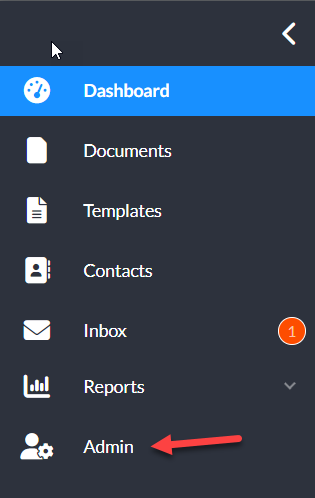
  1. From the user dashboard, navigate to the Admin Console by selecting Admin on the left sidebar menu.
  2. In the Admin view, select Users & Teams on the revised side menu.
    Admin Users and Teams
  3. Select the the checkbox next to the user you would like to update.
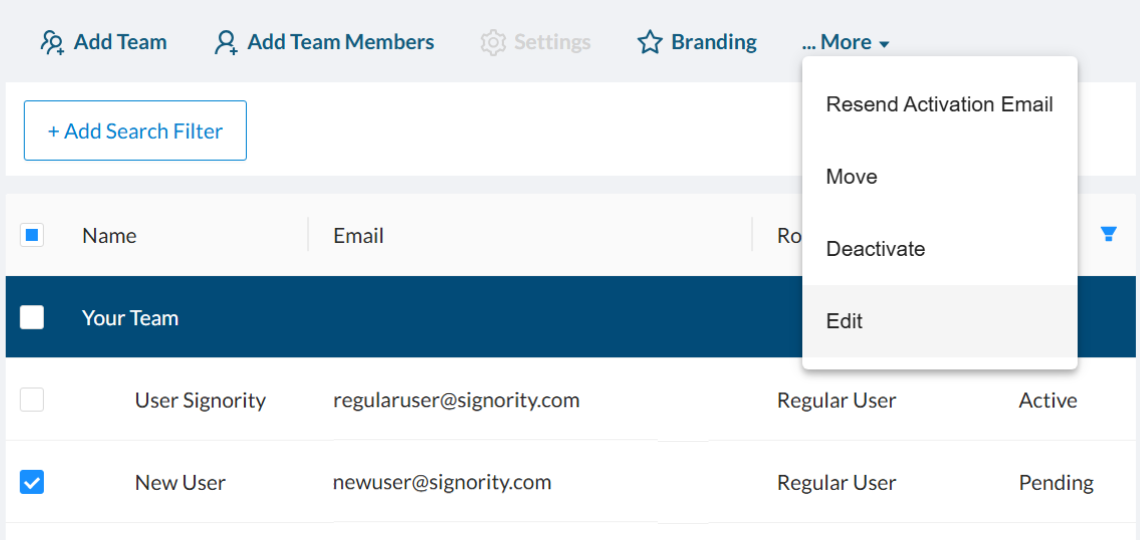
  4. In the action menu above the users table, click More > Edit.
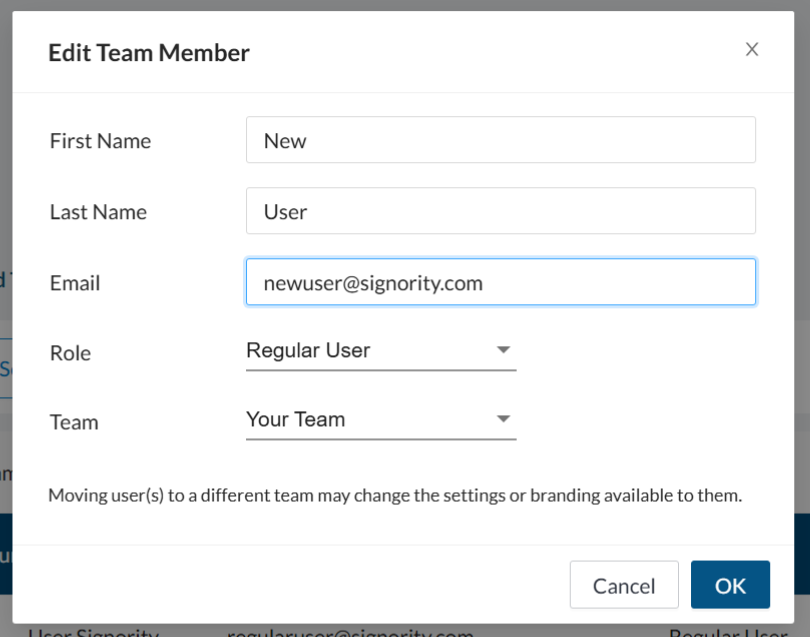
  5. In the pop-up that appears, make the required changes to the users information.
  6. Click OK when you are done to save the changes.

Editor Recipient Overview

Available with: Custom & Enterprise Plans            Role: All Users 

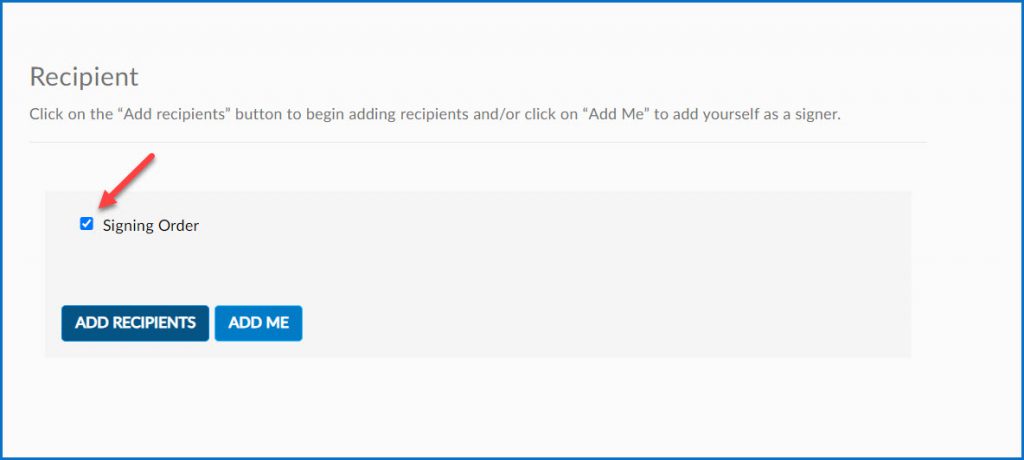
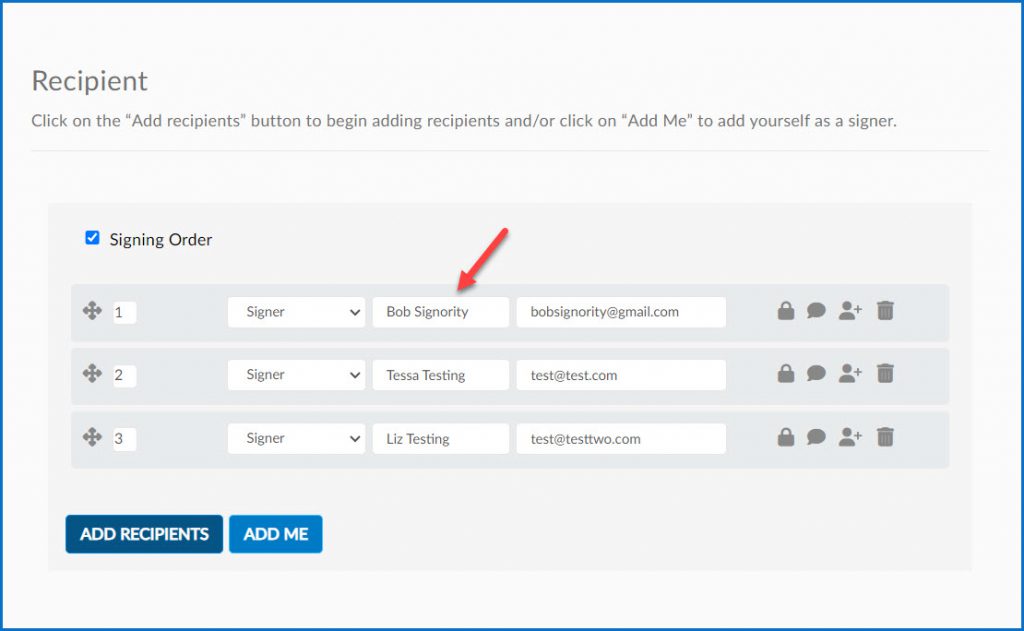
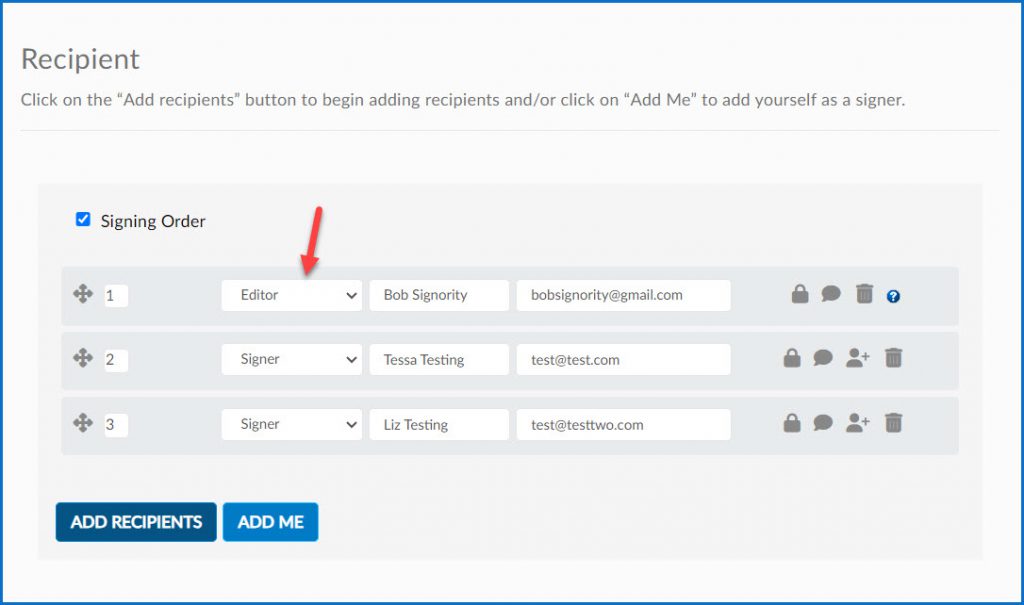
An Editor recipient is a recipient role that allows the recipient to make changes to the document before it is sent for signing. They do not have any tags to fill or sign (unless added later in the signing order as a signer). Their purpose is to make changes to the package by updating or adding additional recipients and tags, functioning similarly to a “Correct” action before a document reaches the next recipient. The Editor must be the first recipient in the signing workflow, and any changes made by the recipients will be recorded in the document history.

Note: For any large errors, we recommend considering cancelling and resending the package.

Editor Recipient Abilities & Permissions

  • Manage the document files:
    • Upload, remove, or replace files in the package.
    • Cannot change document settings, i.e. Signer Options.
  • Edit the recipient list:
    • Add, remove, edit, and reorder recipients
      • Cannot add, remove or edit an Encrypted Stamp recipient.
    • Configure, remove, or modify recipient options such as authentication, witnesses, and private messages.
  • Manage the document tags:
    • Add, remove, or edit tags.

How the Editor Role Works

  1. The sender will assign the Editor recipient type to the first recipient in the signing order when preparing a document.
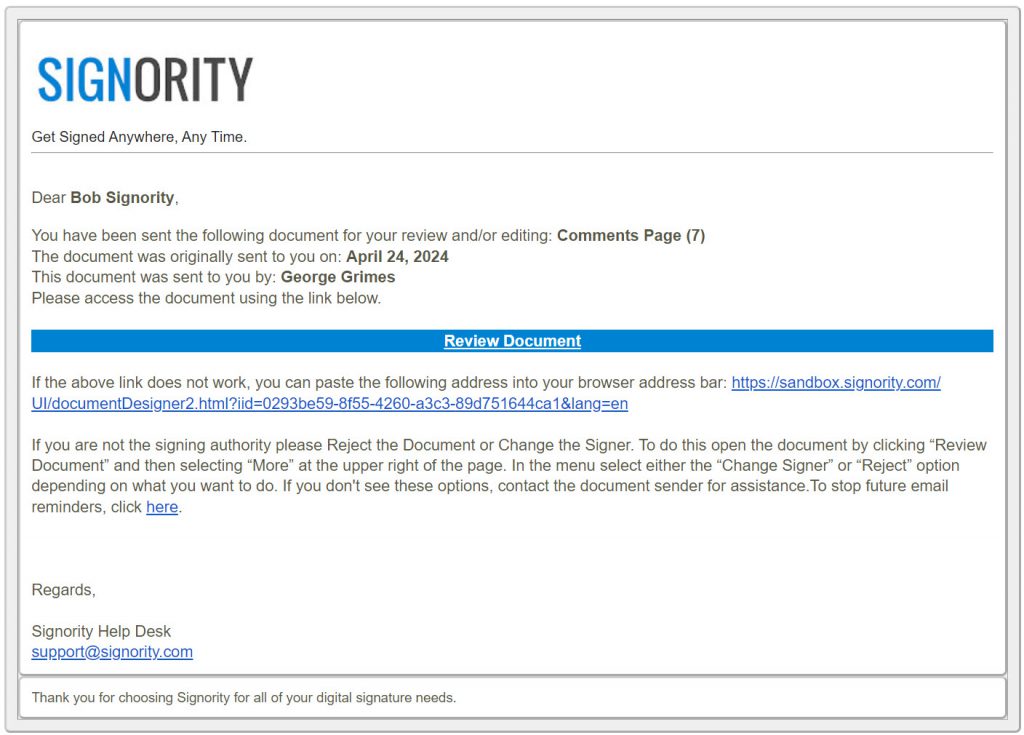
  2. The Editor receives an email invitation with a link to access the document.
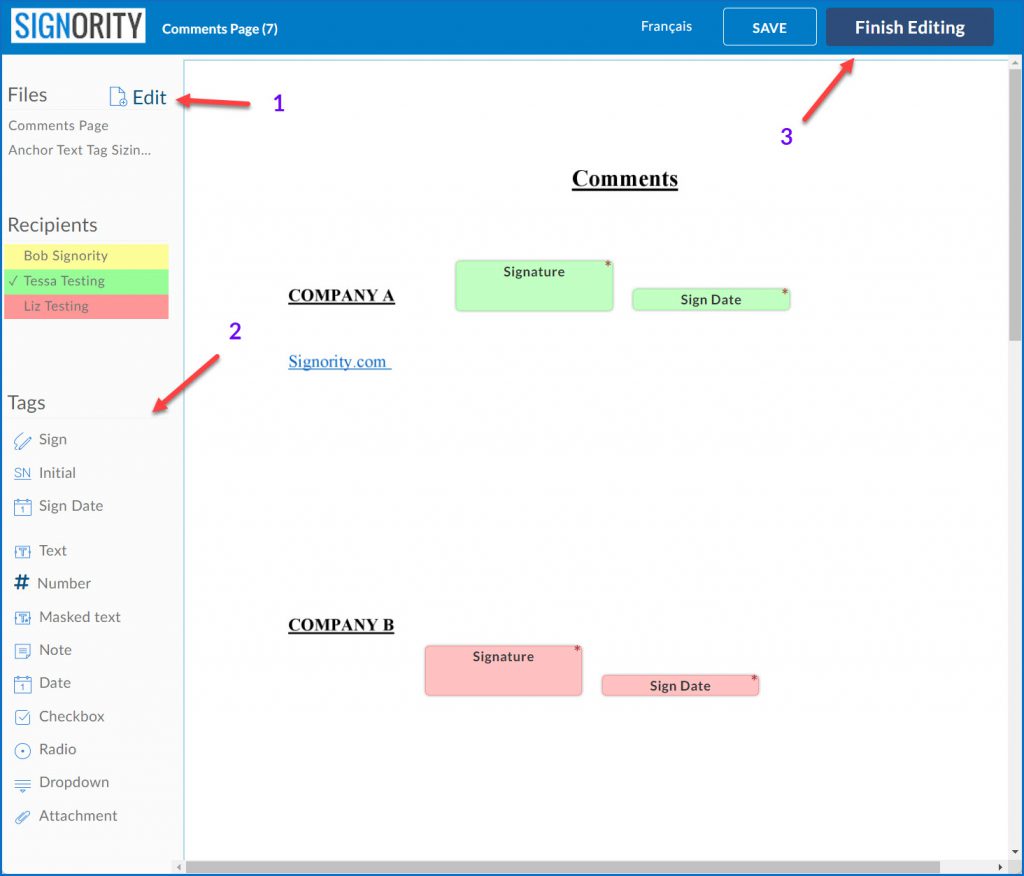
  3. The Editor can open the document and edit all aspects of the document with the exception of the documents settings.
  4. After making any necessary changes, the Editor can send the modified document to the next recipient.

Further Readings

Editing a Document as an Editor Recipient
Adding an Editor Recipient to an eSign Workflow

Resend a User’s Activation Email

Available with: Team Plans            Role: Super Admin, Team Admin

  1. From the user dashboard, navigate to the Admin Console by selecting Admin on the left sidebar menu.
  2. In the Admin view, select Users & Teams on the revised side menu.Admin Users and Teams
  3. Select the the checkbox next to the user you would like to resend the invite for.
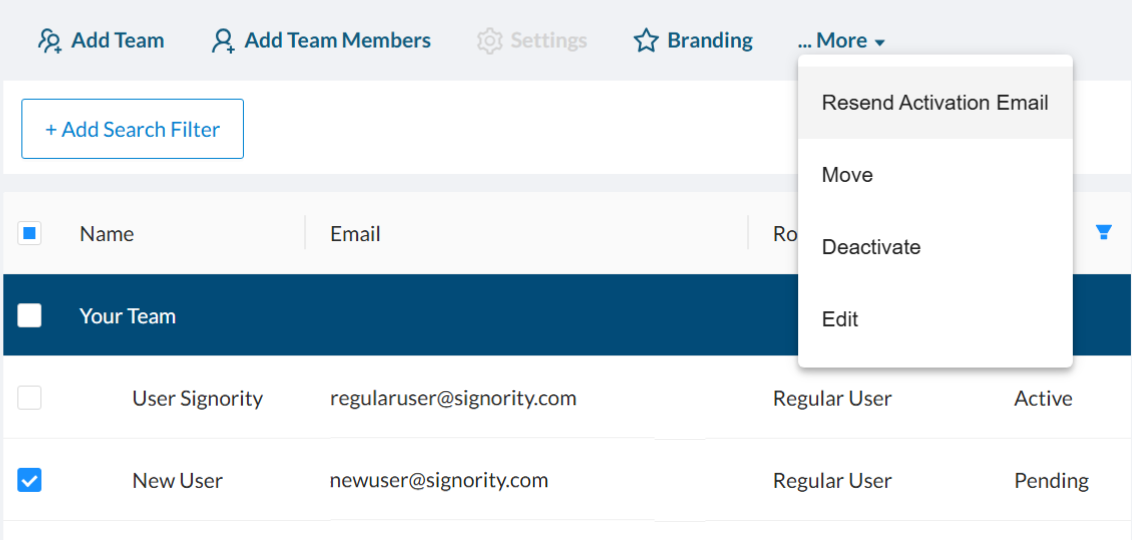
  4. Then, select More>Resend Activation Email in the bar above the table.
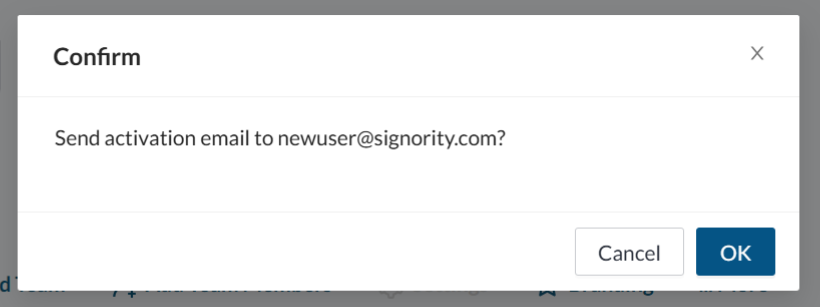
  5. A confirmation pop-up will appear — click OK to confirm and resend the activation email.

Change a User’s Email Before Resending

If you need to change the user’s email address before resending the activation email:

  1. On the Users & Teams page, check the box next to the user.
  2. In the action menu above the users table, click More > Edit.
  3. In the pop-up, update the user’s email (or any other necessary information)
  4. Click OK when you are done to save the changes.
  5. You can now resend the activation email to the updated email address using the steps above.

Checkbox Tag

Add a Checkbox Tag

  1. Create a document or template as usual, adding the files and recipients.
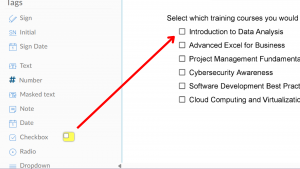
  2. In the document editor, under Tags on the left panel, add the Checkbox tag to your document.
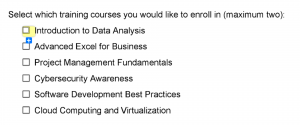
  3. Click the “+” symbol at the bottom of a checkbox to add additional checkboxes to the group.
  4. Click and drag the individual checkboxes to your desired position.
    Tip: For precise alignment, you can select the entire group and use the alignment tool on the right panel.

Validate a Checkbox Group

In Signority, you can validate checkbox groups to enforce how many checkboxes a recipient must or can select by using the “Group Validation” setting.

  1. Select a checkbox tag that is a part of a checkbox group.
  2. Click on the gear icon to open the checkbox group settings.
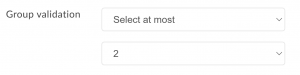
  3. Under “Group Validation, ”  select from the following options:
    • Select at least
    • Select at most
    • Select exactly
  4. Set the value of checkboxes they can select.

Example: If you require your client to select a maximum of (2) training sessions, you set validation to “Select at most” and enter a value of 2.


Upload Files to New Document

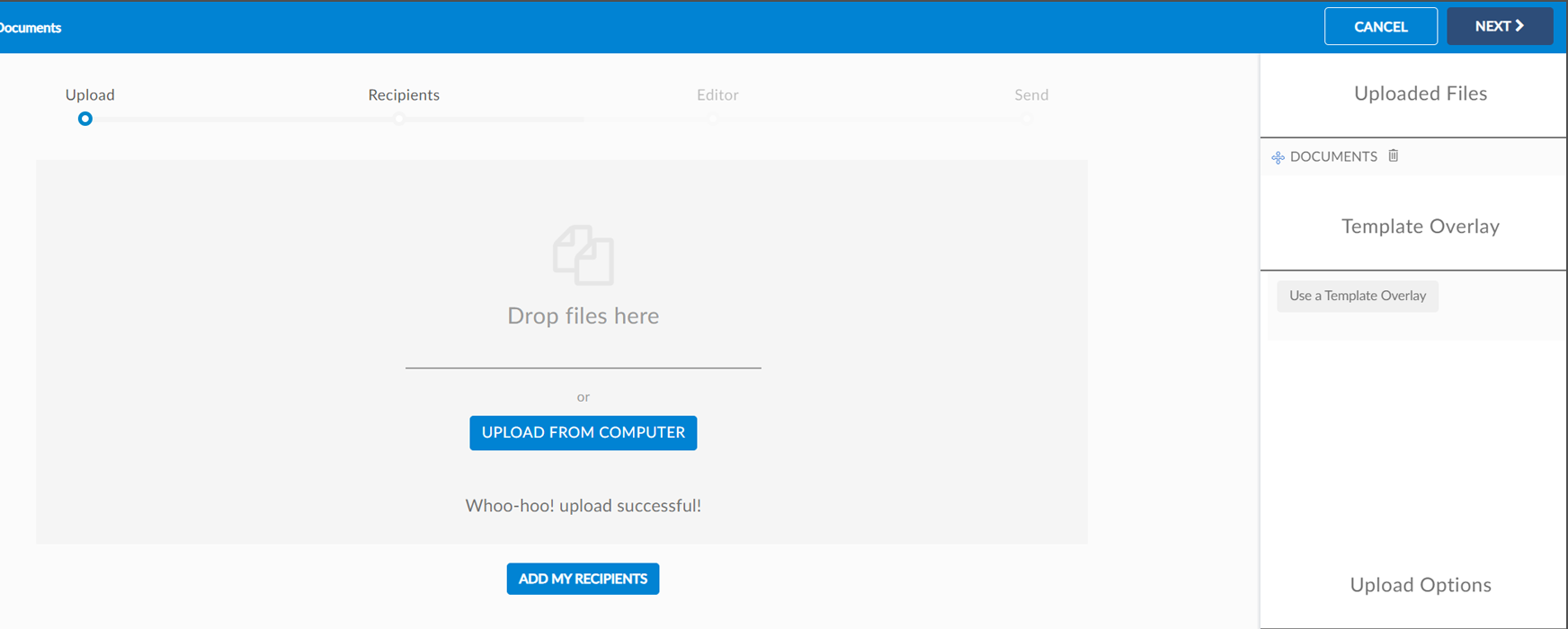
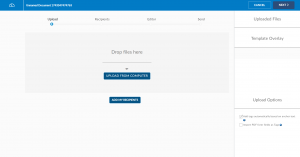
Once you start a new document, you can add the files you want in your e-sign document. You will be brought to the ‘Upload’ page on the document designer, where you can either drag and drop your file(s) into the grey area or select the Upload From Computer button in the middle of the page.

A message will appear when a document is successfully uploaded, and the name of the document will be listed on the right panel under ‘Uploaded Files.’

Start a New Document

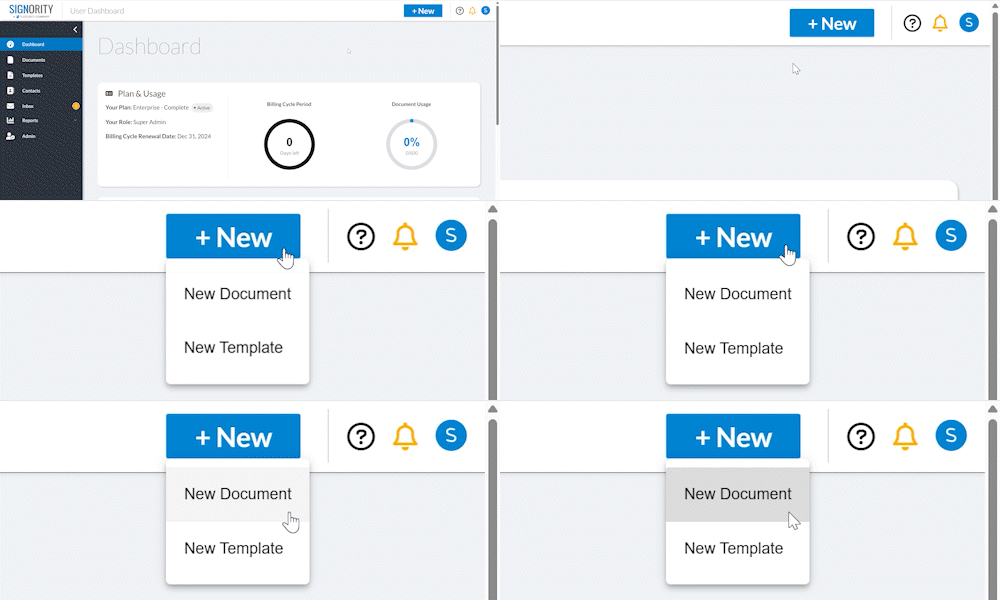
You can start a new document from the top header in Signority. Click +New > New Document.

You will then be brought to the document design wizard to set up your document for e-sign.

On the upload page, you can upload your files.

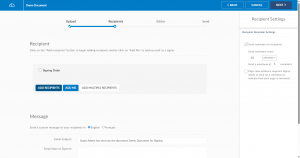
On the recipients page, you can add your recipients and customize the email message and notification settings.

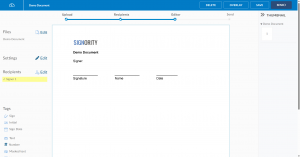
On the document editor, you can finish preparing your document for signature, add tags for recipients to fill.

Encrypted Stamps

Available with: Custom Plans

Encrypted Stamps give a recipient the authority to place an encrypted stamp on the document that represents your organization’s department.


Setting Up an Encrypted Stamp

Role(s): Team Admin, Super Admin

  1. Navigate to the Admin Console
  2. In the left side menu select Settings > Stamps.
  3. Select the Add New button at the top right of the page.
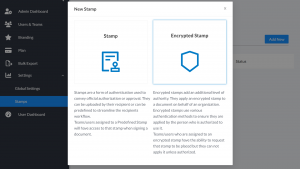
  4. On the pop-up select Encrypted Stamp.
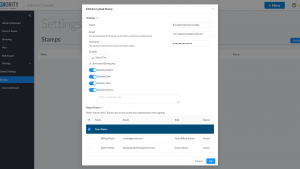
  5. Enter the following details:
      • Name: Name of the electronic seal
      • Email: The email of the person (signer) who can apply the electronic seal on to the document
      • Password: The signer will require this password to apply the seal.
      • Graphic:
        • File: PNG or JPEG of the electronic seal
        • Display Subject: Seal Name
        • Display Date: Date that the seal is applied
        • Display Time: Time that the seal is applied
        • Display Reason: Reason for seal being applied
      • Users/Teams: Select the users/teams that can request that an electronic seal be applied to their documents. You may select either an individual or a  team. If you select a team you do not have to select the individuals within the team.
        Note: When you select a team, the whole team will have the ability to request an eSeal, even though the box beside each team member is not checked.
  6. Click OK when you are done.

The encrypted stamp will now appear on the Stamps page. To edit the stamp, click the pen icon button to the right of the stamp.

Adding an Encrypted Stamp to a Document or Template

  1. Begin by creating a new document, then upload your documents or go straight to the add recipients page.
  2. On the recipient’s page, add the recipients for your document.
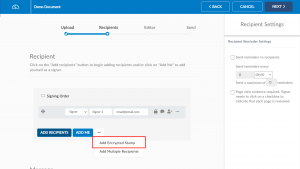
  3. Add the encrypted stamp recipient by clicking the Ellipses button next to Add Me and select Add Encrypted Stamp.
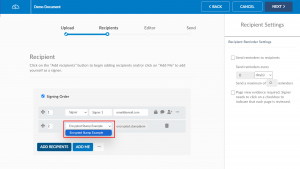
  4. On the new recipient that was added, select which encrypted stamp you wish to request from the dropdown.
  5. Add the rest of your recipients and then click next to proceed to the document editor page.
  6. Select the encrypted stamp recipient on the left menu, and the Encrypted Stamp tag will appear as an option under ‘Tags’ on the left menu.
  7. Drag and drop the Encrypted Stamp onto your document.

    Note: An overlay of the Encrypted Stamp will appear to show how the seal will look once it is applied.
  8. Finish setting up your document and then click Send.

The email associated with the electronic seal will be sent an email when the document is ready for them to apply the seal.

Applying an Encrypted Stamp

  1. Open the document for signature.
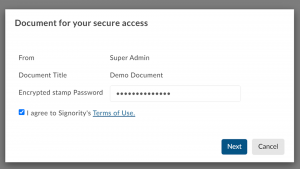
  2. On the “Document for your Secure Access” popup, enter the password for the encrypted stamp.
  3. Agree to the terms of use and click OK.
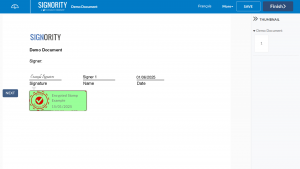
  4. Select the encrypted stamp tag to place the stamp.
  5. Click Finish.


Stamps Page Overview

Available with: Custom Plans

Types of Stamps

Signority offers two types of stamps with varying levels of authority.

Standard Stamps

Standard stamps, simply referred to as Stamps, are a form of authentication used to convey official authorization or approval. They are applied to a document using the Stamp tag that can be added by the sender as part of the document package, or the sender can allow the recipient to add the tag themselves after the document has been sent for signature. During the signing process, if the sender has added a stamp tag or if the recipient has added one themselves, the recipient can (if permitted by the sender) upload an image of the stamp or they can select an activated, predefined stamp. Stamps can be predefined for team(s)/user(s) by super admins and team admins on the Admin Console’s Stamps page. Team(s)/user(s) assigned a stamp will have access to that stamp when signing the document.

Learn more about stamps and how to predefine them here.

Encrypted Stamps

Encrypted stamps, formerly named Electronic Seals, add an additional level of authority. They apply an encrypted stamp to a document on behalf of an organization and use various authentication methods to ensure they are applied by the person who is authorized to use it. Encrypted stamps must be set up by a team or super admin on the Admin Console’s Stamps page. 

Unlike Stamps, teams/users who are assigned to an encrypted stamp are typically not the ones applying the stamp to the document. They only have the ability to request that a stamp be placed but they can not apply it unless authorized.

Learn more about how to set up and use and encrypted stamp here.


Activating/Deactivating Stamps

Electronic seals are automatically active once they are made. However, if you wish to deactivate or reactivate them, you can do so by clicking on the “Active” or “Inactive” buttons under the Status column on the Stamps page.

Predefining Stamps

Available with: Custom Plans

Stamps are a form of authentication used to convey official authorization or approval.

Predefining an Encrypted Stamp

Role(s): Team Admin, Super Admin

Super admins and team admins can predefine a stamp for a team(s)/user(s) so that they will have access to that stamp when signing a document. 

  1. Navigate to the Admin Console.
  2. In the left side menu select Settings > Stamps.
  3. At the top right of the page, select the Add New button.
  4. On the pop-up, select Stamp.

  5. Enter the following details:
      • Name: Name of the electronic seal
      • Upload Graphic: PNG or JPEG of the stamp
      • Users/Teams: Select the users/teams that have access to that stamp when signing a document. You may select either an individual user or a team as a whole. When you select a team, the whole team will have access to that stamp.
        Note: If you select a team, you do not have to select the individuals within the team.
  6. Click OK when you are done.

The stamp will now appear on the Stamps page. To edit the stamp, click the pen icon button to the right of the stamp.

Adding a Stamp Tag as a Sender

Role(s): Sender

By default, recipients are able to a upload their own stamp to a stamp tag. You can change this on the document as is covered in this tutorial or you can change these default settings under Settings > Global Settings > Signer Options and toggle to set the default to enabled/disabled.

  1. Begin by creating a new document, then upload your documents or go straight to the add recipients page.
  2. Add the recipients for your document.
  3. [Optional] Enable/disable recipients from uploading their own stamp.
    1. To the right of the recipient, select the Elipsis > Recipient Permissions.
    2. Toggle the checkbox on or off.
  4. Click next to proceed to the document editor page.
  5. Select the stamp recipient on the left menu, and the Encrypted Stamp tag will appear as an option under ‘Tags’ on the left menu.
  6. Drag and drop the stamp onto your document.
  7. Finish setting up your document and then click Send.

The email associated with the electronic seal will be sent an email when the document is ready for them to apply the seal.

Enable Signers to Add their Own Stamp Tag

Role(s): Sender

By default, recipients are not able to add their own stamp tag to the document. This tutorial covers how to change this on the document, however, you can change the default setting under Settings > Global Settings > Signer Options.

  1. Begin by creating a new document, then upload your documents or go straight to the add recipients page.
  2. Add the recipients for your document.
  3. To the right of the recipient, select the Elipsis > Recipient Permissions.
  4. Toggle the checkbox on or off.

Adding a Stamp Tag as a Signer

  1. Open the document for signature.
  2. Agree to the terms of use and click OK.
  3. Drag and drop from the Stamp Tag to the right of the document to place the stamp.
  4. Adjust the location and size of the stamp.
  5. Select the stamp tag to upload or select a predefined stamp to place on the document.
  6. Fill in any other tags assigned to you.
  7. Click Finish to complete the signing process.


How to Verify a Digital Signature


To verify a Digital Signature is valid using third party validation, simply open any document signed in Signority in any Adobe Reader.

At the top of the document, you will see a blue ribbon (bar) that will validate the signature (1). You can also click into the Signature Panel (2) if your technical team requires any information from the Digital Certificate itself.

Adobe Blue Ribbon Validation

If the document loaded quickly and you see that one of the signatures requires further validation, try refreshing the document. This will typically complete the validation process and when it reloads it should verify all the signatures are valid.