Find/Generate My API Key


Availability: Team Plans         Role: Administrators


To find or generate an API Key to use when integrating Signority with another software product go to the Integrations page in your Profile Settings.  To get to the Integrations page from your Dashboard:

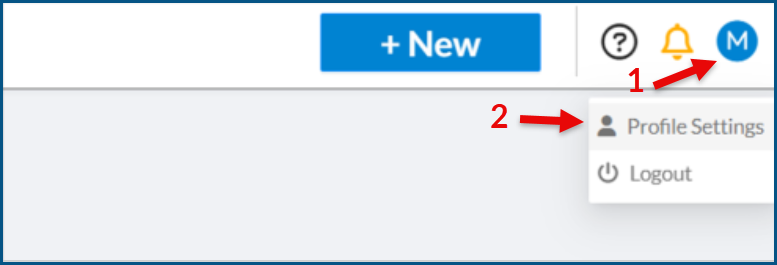
1 – Hover over your initial in the top right corner (1) and in the menu that appears select Profile Settings (2).

Profile dropdown menu
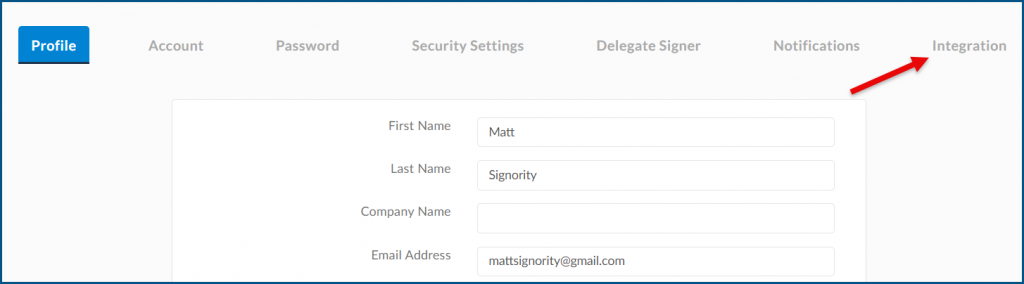
2 – Select Integration in the top menu.


The second section on the page is where you can find or generate your API Key Generation.

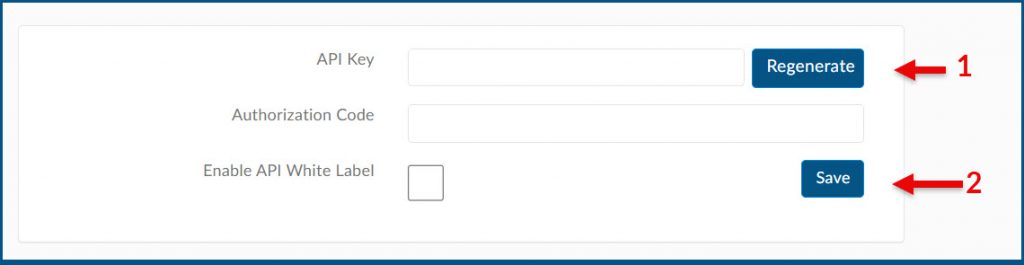
If the text boxes are empty as below you will need to generate your API Key and Authorization code.  To do this simply click the Generate button (1) and then the Save button (2). Then simply copy the Key and/or Code.

Empty API Key fields


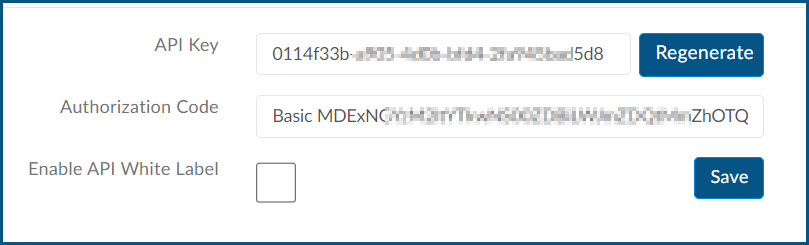
If there is already content in each of the two fields as below, congratulations you have found your API Key and Authorization Code.  Simply copy what you need.

API Key Generated

Create a New Document

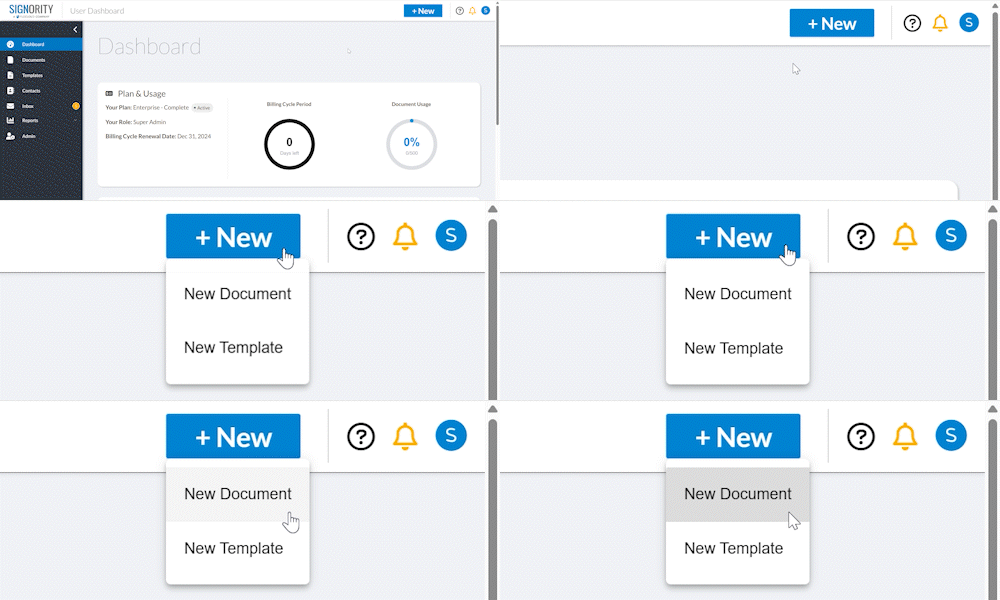
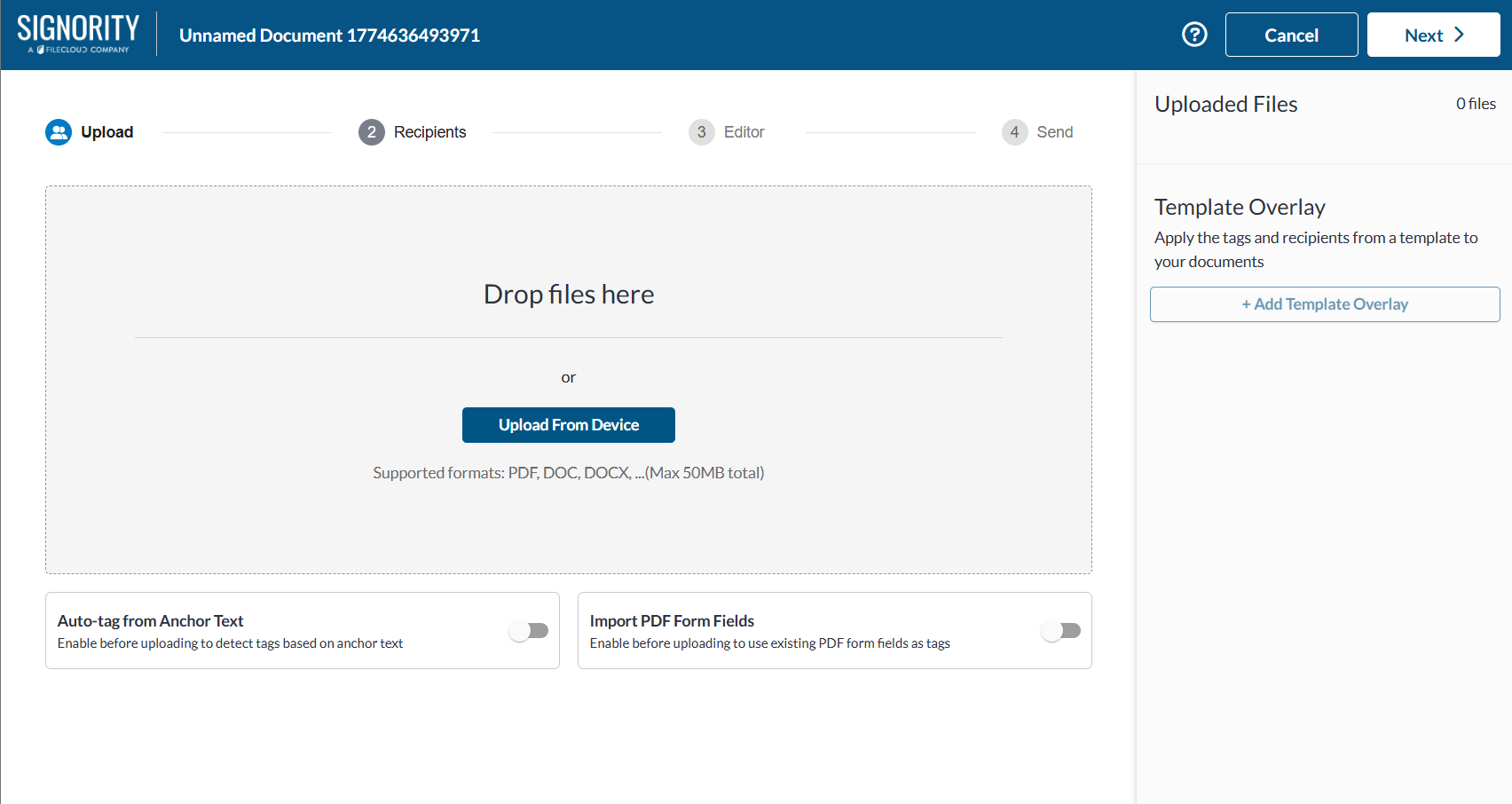
  1. In Signority, on the top header, click +New > New Document.
  2. Begin by uploading the document you wish to use by either dragging and dropping it into the grey area or using the Upload From Computer button in the middle of the page. A message will appear when a document is successfully uploaded, and the name of the document will be listed on the right panel under ‘Uploaded Files. ‘

    Note: If you have a document that has PDF form fields or anchor text, you can select those options first before uploading your document. This will let the system know to upload while searching for those options.

  3. Click Next to go to the Recipients page.
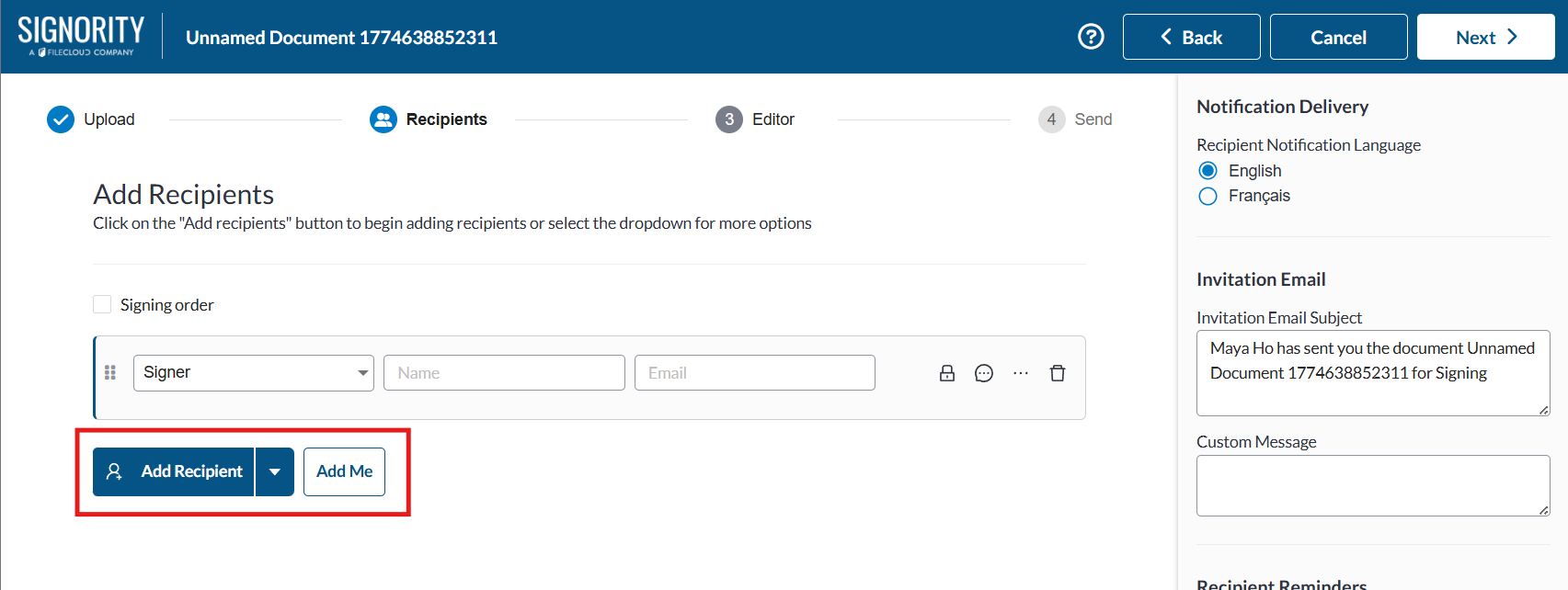
  4. On the Recipients page, select Add Recipients and enter their names and email addresses, or if you will be a signer, you can simply select Add Me to add yourself.
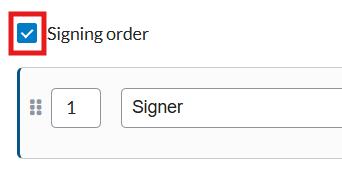
  5. You can also create a signing order by selecting the Signing Order checkbox and reordering the recipients by either dragging them or typing in their order number. This allows you to create a sequence for your signers and further customize the workflow to fit your needs.
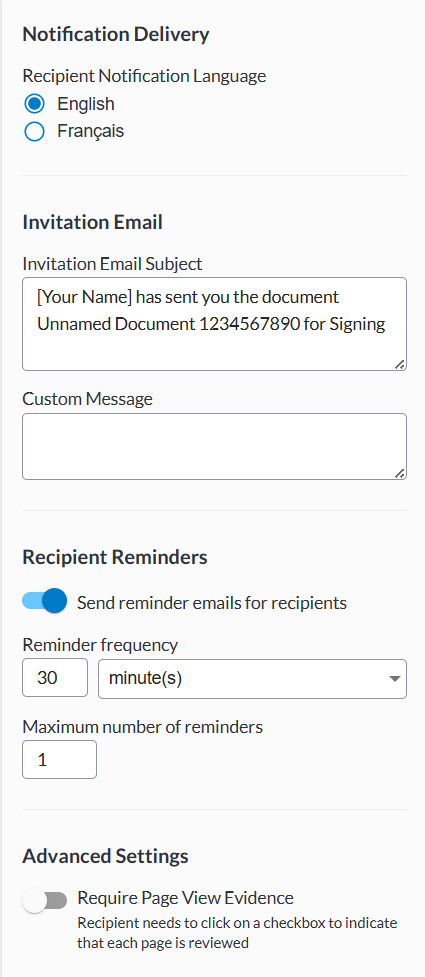
  6. You can then personalize the invitation email to your signers by changing the email subject line and body message to suit your needs.  You can also customize an email reminder schedule and set up capturing page view evidence from your signers on the right panel.
  7. Click next to go to the document editor.
  8. On the editor page, add Tags to your document and assign them to the correct role by selecting the tag and using the drop-down. Continue adding tags through the rest of the document

    Tip: You can also pre-fill the tags by simply clicking on the tag and then typing.
  9. To edit a tag’s settings, select the tag and then click on the gear icon.
  10. Review your document before clicking Send in the top right.

Congratulations on sending a document with Signority!

Submit a Support Ticket


NOTE: Once you complete the first step you will be taken to our parent company site FileCloud.com.  We have combined our support tracking into one platform for efficiencies.

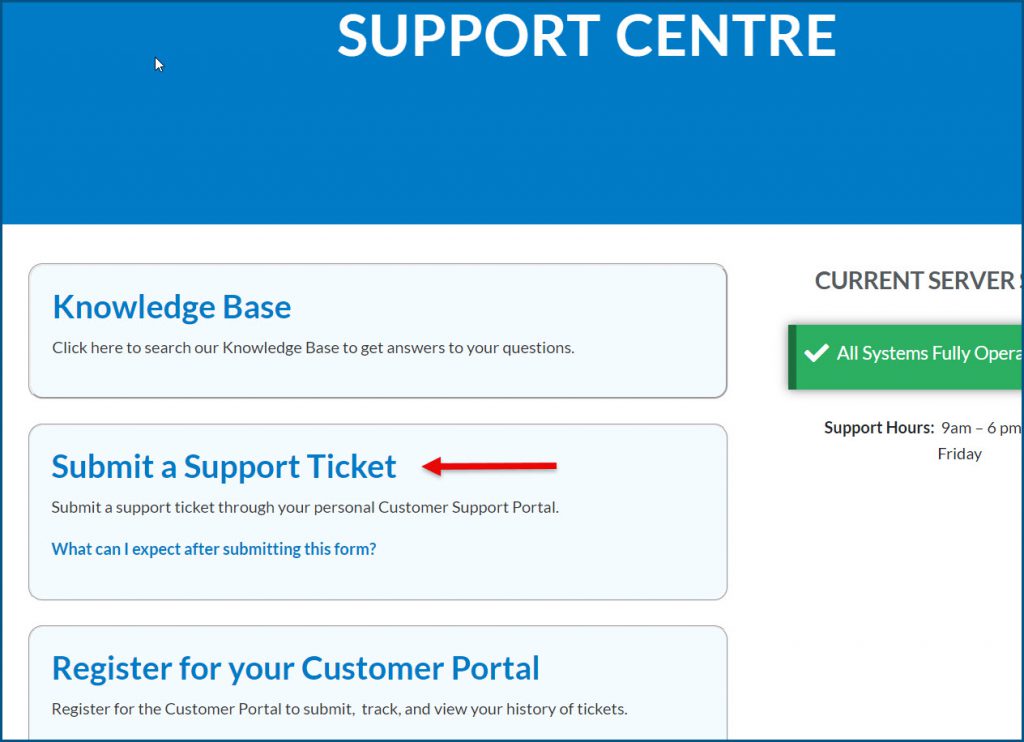
1. Go to the Signority Support Centre and click on Submit a Support Ticket.

Submit a Support Ticket

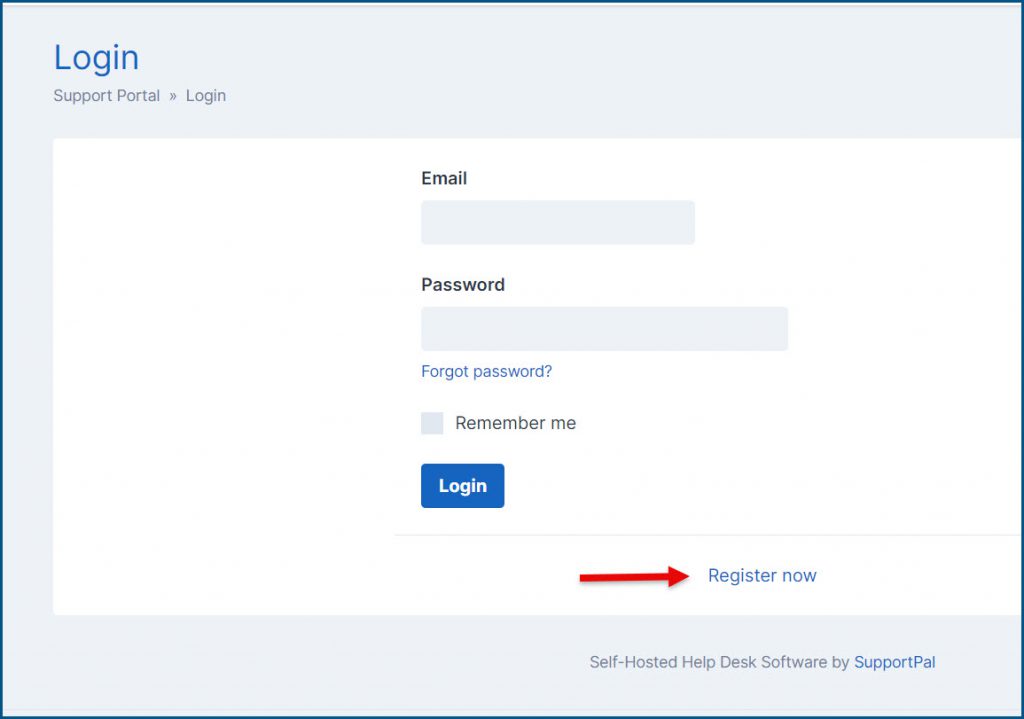
2. Login to the Portal, or click Register at the bottom if you haven’t created an account already.

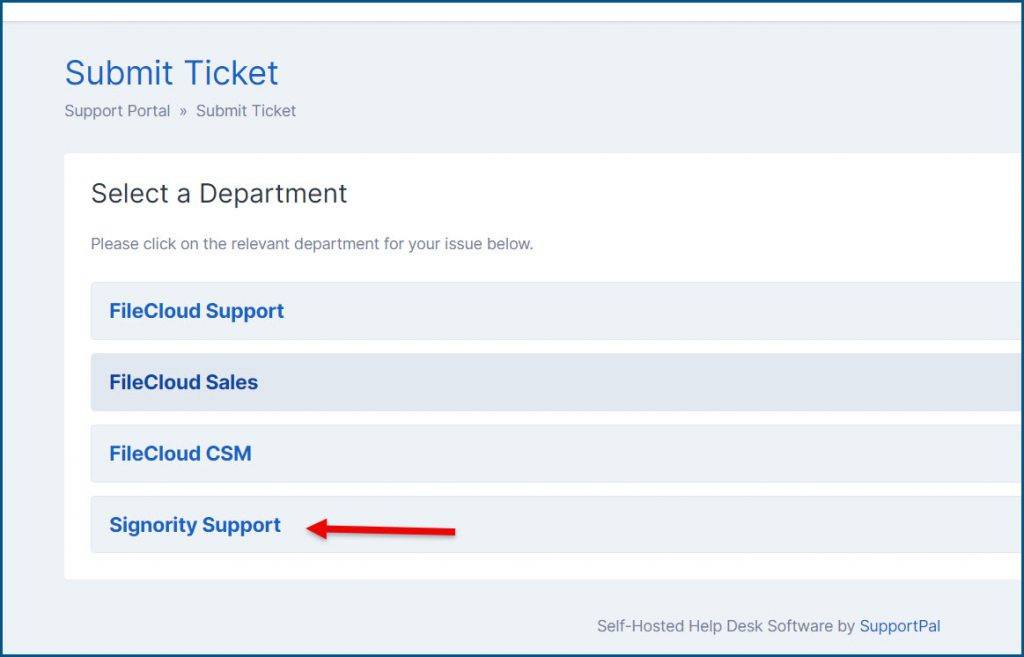
3. Once you are logged in and ready to submit your ticket request choose the Signority Support option.

Signority Support Option

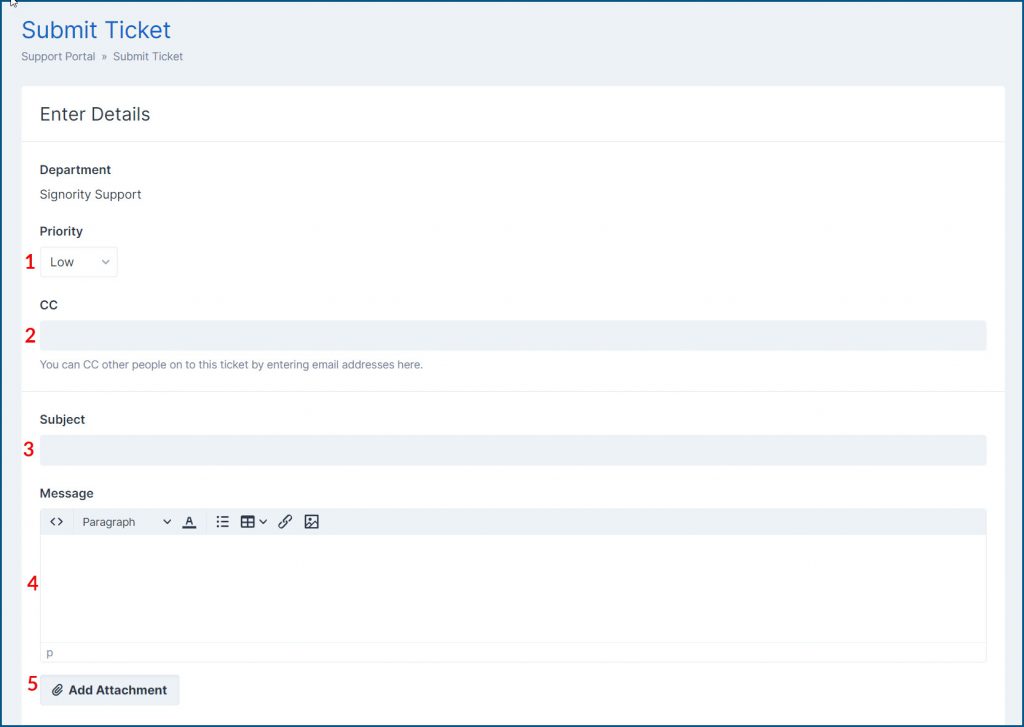
4. The first part of the form is all about your ticket and the issue you need resolving.  As you can see below you will need to fill out:

  1. The Priority of the issue: Low, Normal, High, Critical (Critical is reserved for when the site is down)
  2. CC: Do you want to cc anyone on the ticket communications
  3. Subject: What the ticket is about
  4. Message: Please give as much detail as possible.
  5. Add Attachment: Please attach any screenshots of the error or issue if you can.

Top Ticket Section

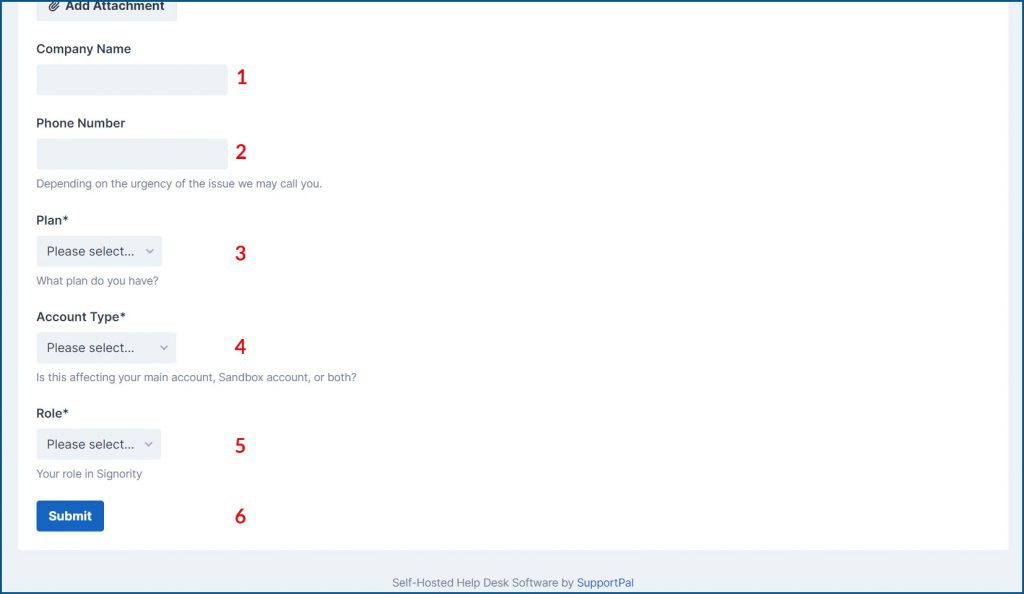
5. In the bottom section we ask for information that allows us to know:

  1. Company Name: The organization you are with (optional for individual accounts)
  2. Phone Number: Where we can reach you if we need more information and it’s time sensitive.
  3. Plan: What plan you are on. (If you are a regular user you may need to ask an Admin.)
  4. Account Type: Is the issue affecting your main account (used for business), sandbox account (testing), or both?
  5. Your Role: Are you a Team Billing Admin, Super Admin, Team Admin, Doc Admin, or Regular User (this can be found on your Dashboard in the top with the subscription information – if you do not see it, you are a Regular User)
  6. Submit: Once you have filled in all the required information click this button to submit the ticket. You will then receive an email confirming your ticket has been received along with the ticket number.

Bottom Ticket Section

Register for Customer Support Portal


There are two places you can get to the registration page from:

1 –   Signority’s Support Centre page

Submit a Support Ticket


2 – Submit a Ticket page (if you accidently clicked Submit a Support Ticket before registering)

When you arrive at the registration page you will be asked for the following information:

  • First Name and Last Name
  • Email address
  • Password and then to confirm the password
  • Phone number
  • Country
  • Time zone
  • Organization *Mandatory if a corporate account
  • License Key Ignore if you do not have the FileCloud service.

Once you have filled in all the fields, click the blue Register button.

Customer Portal Registration

Signer 2FA: One-time-passcode (OTP)


Setting Up a One-Time-Passcode

Available Plans: All               Roles: All Roles

When creating the workflow for a document you can set that a signer or viewer requires a one-time-passcode (signer 2FA) to access the document. This passcode is good for one use only and will expire at a time you set if not used. 

When you set  a one-time-passcode (OTP) for someone in your signing workflow, they will also have to enter a OTP anytime they want to access the final document from the server. 

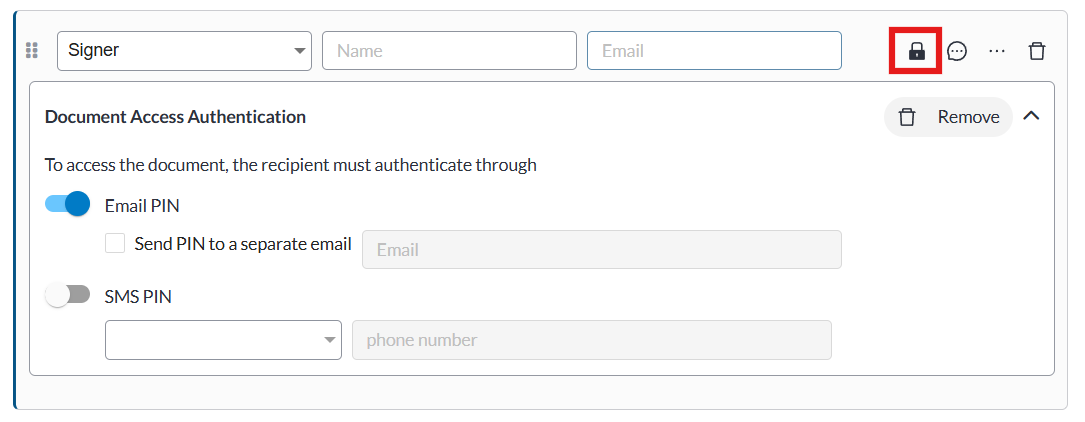
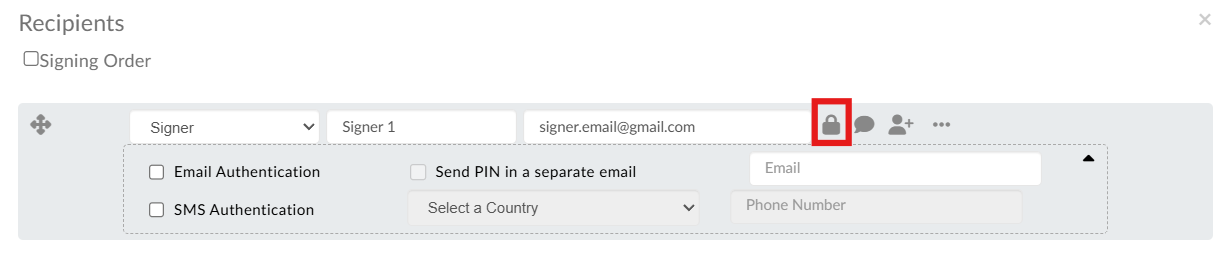
To require  a signer to receive an OTP, in the workflow click the lock icon in the signer row. A section will appear underneath the signer where you can set how they will receive the OTP (SMS, Email, Secondary Email).

One time passcode


Set the Expiration Time for One-Time-Passcodes

Available Plans: All               Roles: Billing and Super Admins  

When you set that a recipient must enter a one-time authentication code to access the document you can now set how long that code is valid for.  

 To set the expiration time: 

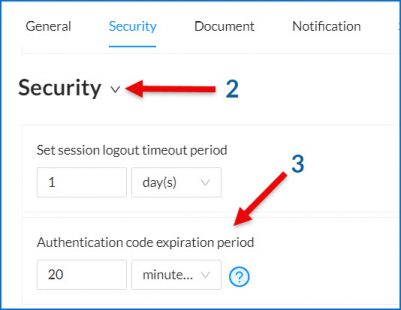
  1. Go to Admin >> Settings >> Global Settings 
  1. In the Global Settings menu select Security 
  1. Go to Authentication code expiration period and choose the timing of your choice. You may set it using minutes, hours, or days. 

One-time authentication code settings


Signature Tag: Activating Timestamp

  1. Once you place your Signature tag on to the document, click the tag once to have the menu bar appear and then select the Gear icon.
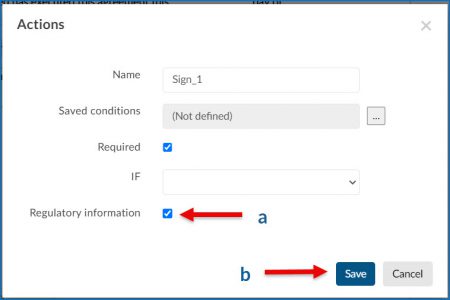
  2. Once the Actions box appears:
    1. Check the Regulatory Information box 
    2. Click on Save 
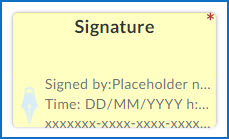
  3. Your Signature Tag should now show the placeholders for the Signers name, time and date, and the document ID number.

Signature Tag: Advanced Features


This article will review the different features that are available to the Signature Tag. 

The Signature is used to capture the signature of your recipients on a document.  A signature may be submitted by the recipient by uploading and image, typing a signature, or drawing a signature using a finger or stylus.  

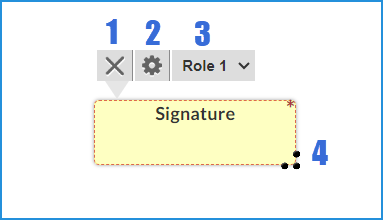
 The tag, seen in the image below, when clicked on will have a menu will three icons appear on top and three dots on the bottom right of the tag. 

Signature Tag Overview1. X: will delete the tag

2. Gear: will open the advanced features window

3. Recipient Drop Down Menu: Allows you to change the recipient the tag is assigned to

4. Three Dots: Click your mouse on these dots, hold, and drag your mouse to resize the tag.


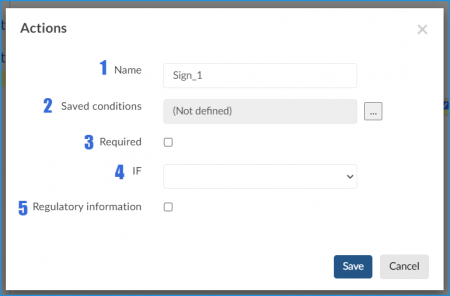
In the Advanced Features modal window that pops up you will find the following options:

Signature Tag Overview numbered

  1. Name: Give the tag a name to identify it, this is helpful if you export the document data.  
  2. Saved Conditions: If applicable this allows you to set conditions on when, how, or if the tag is used. Currently there is no condition that uses the Signature tag. 
  3. Required: Check this box to make the tag Required for mandatory signing.  
  4. IF: This dropdown menu will list all the checkboxes in the document and allow you to make the Signature Tag mandatory, or optional, depending on your selection. 
  5. Regulatory Information: Checking this box will apply a timestamp and GUID information appear underneath the signature. 


Template Settings: Signer View (Signer Options)

Available with: All Plans                   Available to: All Users


To update Template settings:

  1. Go to your Templates Folder
  2. Select the type of Template you want to update (regular, template link, bulk sign)
  3. Click on the name of the template you want to update
  4.  

  5. In the template’s document design page click on Edit beside Settings in the lefthand sidebar menu
    Template settings Edit
  6.  

  7. In the window that pops up, go to the settings you want to update, I’ve chosen Signer Views in the example below. If a setting you wish to update is locked, as is the case with the Hide Download Button option below, you will have to ask an Admin to unlock it for you.
    Template Settings Signer Views
  8.  

  9. Once the option has been unlocked update the setting and then click Save as seen below.
    Template settings Updated and saved
  10.  

  11. Once you have completed this task in all the Templates you need to update ask the Admin to relock any settings they had unlocked for you in the process.


Why did the font change in my document?


Have you ever sent a document for signing only to have it come back with mismatched fonts, or a different font than you created the document in?

Signority has 2 fonts embedded within it for rendering your document; Arial and Times New Roman

If you are looking to ensure your document stays in the font you have used for consistency we recommend that you embed custom fonts into your document.  Microsoft has some tutorials on how to accomplish this, just choose the right environment for you:

Windows environment  or  macOS


Delete All My Documents


Plan: All                           Users: All

This tutorial reviews how to delete all the documents within your account. 

Note: A Bulk Delete feature is coming in 2024

If the documents have already been exported or you do not need to keep any copies you can delete the documents in the account by:

  1. Going into the Documents Folder
  2. Updating the number of documents per page to 30
    Increase documents on page

  3. Check the box beside Document Title (1) to select All Documents and click Delete (2).
    Select Documents

  4. Do this until all the documents have been deleted.