Template Overlay for Dynamic Documents

Ever have dynamic documents, such as an invoice or an expense form? The content of the document may change from use to use but the placement of the tags remain the same. In these instances, the Template Overlay can dramatically save you time and effort.
With the template overlay feature, you can create a template of a blank document, and then when needed, overlay the tags from the template onto a new document you have uploaded.

Preparing the Template for Overlay

To use the template overlay feature, you first need to make a template of the document in question. You can get a step-by-step guide on how to create your template here.
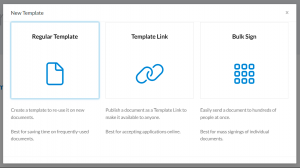
But briefly, begin by using the +New button in the top right and select New Template. When prompted, select the Regular Template option.
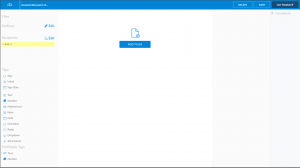
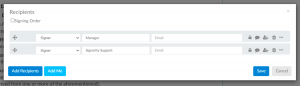
On the Editor page, Add the file you’ll use for the overlay and then Edit Recipients to create roles for your signers.
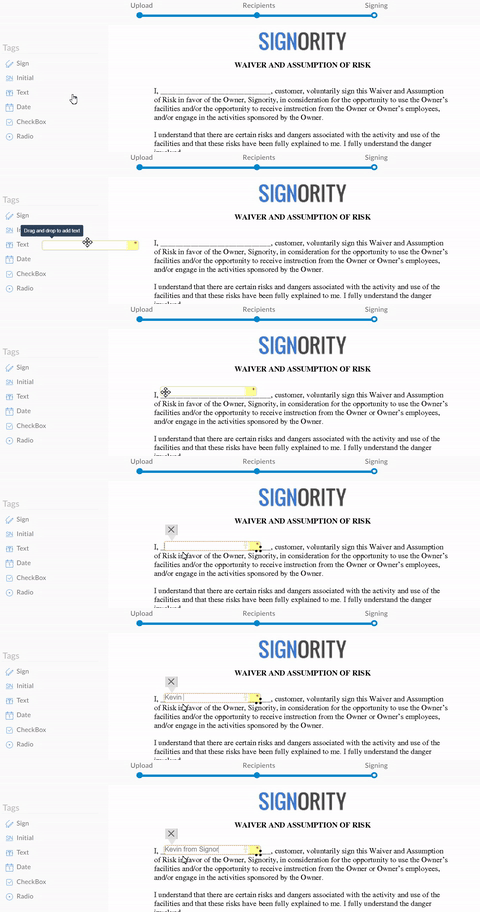
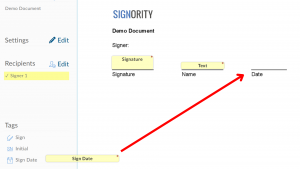
Once the Roles are created, add Tags to collect signer information by dragging and dropping them into place on the document.
When you’re done, click on the More option and select Save File.

Using Template Overlay

Now that you have created a template, you can use the Overlay feature whenever you create a new document.
Use the +New button again and this time select New Document. The process for document creation is the same as always, you can check out our guide here.
Begin by uploading the dynamic version of the template you want to overlay. Usually, this is when the user generates a new document for their signers, such as an expense form or an application, that has the changed content compared to the template. What you’re going to be using are the tags that are in the template and overlaying those tags onto the new document.
Once the document is uploaded, Add Recipients and edit any recipient settings you want, like automatic reminderscustomized invitation emailsetc.
Once you’re done, move on to the Editor page. You should see the new document uploaded. Click on the More option in the top right and select the Overlay option.
Template overlay option on editor page
When prompted, select the Template Overlay you wish to use and confirm or customize.

When you have specific pages from the template to overlay to the document, Drag and Drop to the proper pages.

If done correctly, the overlay should be applied and the document will have the tags from the template visible on the Editor page. Add any extra tags you may need, make sure all the tags are properly assigned to their signers, and then send the document to collect your signatures!

Further Reading

Publishing Template Links for Online Document Signing
Bulk Send Documents for Signing
Track and Monitor Document Status and History

Assigning Tags to Specific Signers & Making Tags Optional

Tags are an integral part of Signority’s eSignature platform. This is how we’re able to collect any kind of information from your signers, so assigning tags to become a crucial part of the workflow. If tags are assigned or setup improperly, the workflow will need to start over, even if the signers entered their information and added their signature! So let’s go over the right way to do it and divert any issues before they happen.

Assigning Tags to the Right Signers

In any workflow in Signority, whether it’s with a regular document or a specific type of template, adding and assigning tags are a crucial part of the process. We’ll be going over how to assign tags to the right signers and what they look like for specific types of signers within Signority.
First, we’ll go over how to assign tags to specific signers.
If you’re sending out a regular document, the process will be the same. Upload the document you need signed and Add Recipients until your signer list is set.
When you get to the Editor page, drag and drop a tag into place and then click on it to bring up the options directly above. Use the drop-down menu to find the correct recipient. Notice that the tag colour will change to something else, making it easier for you to distinguish which tags are for which person.
By default, the tag will be assigned to the first recipient in the list, but as soon as you’ve switched recipients, we’ll assign new tags to the most recent recipient.
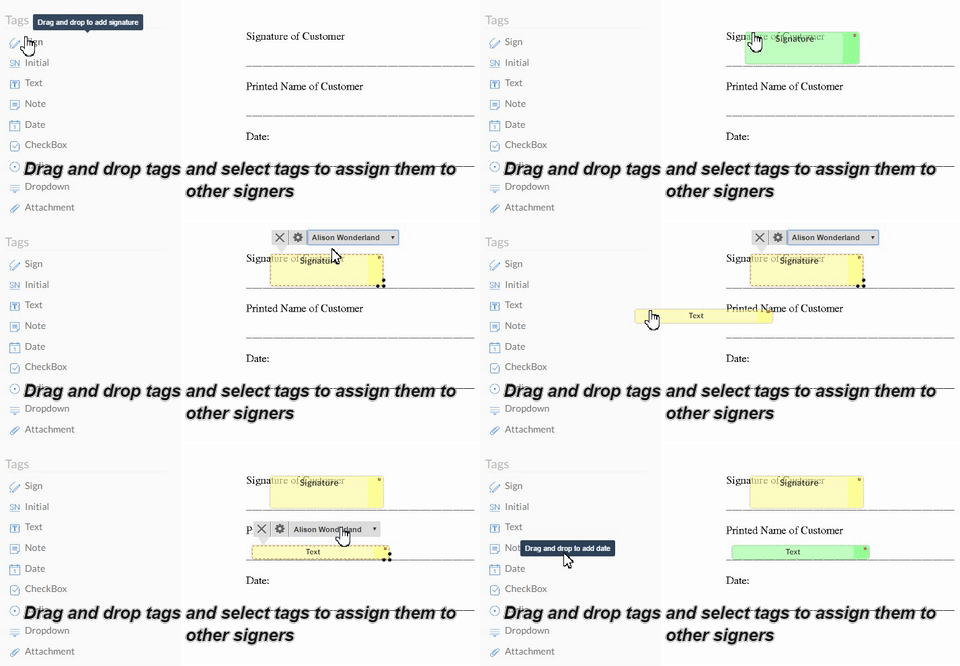
See how to add tags and assign them to the right signers
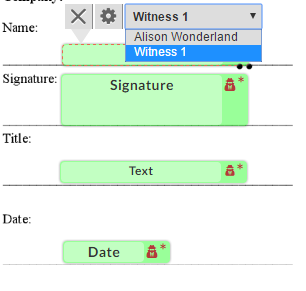
There are also minor changes for other signer types and roles. If your document needs a witness signing, you can set up a witness for specific signers. Tags that are assigned to witnesses, though, look slightly different than regular tags. You’ll notice the icon of a person to indicate a witness tag.
There’s also a slight difference for Signing Hosts. Signing hosts are used whenever you want to conduct an In Person Signing, for people who do not have email or for those who are present in person and still want to use eSignature. You can learn how to set up an In-Person Signing here.
With Signing Hosts, you’ll also notice that assigning tags to them will show with a house icon on the top right.
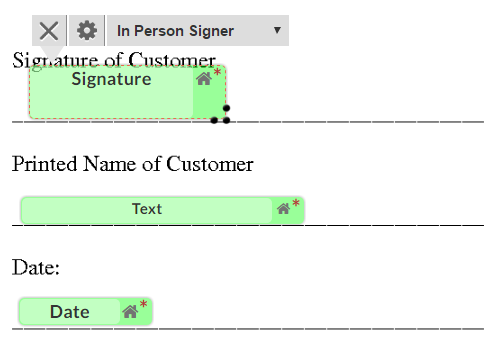
assigning tags to in person signer
With these different tag images, it’s good to know exactly what each difference means so that you can complete your workflows without any hiccups. If you want an overview of what the tags do, click here.

Assigning Tags as Optional

With all of these tags so far, you’ll notice a * (asterisk) in the top right corner of each tag. This indicates that the tag is mandatory and signers are required to fill in mandatory tags to complete their signing.
To make a tag optional, select a tag and use the cog icon to bring up the Settings.
In the Settings window, uncheck the Required box and then click Save.
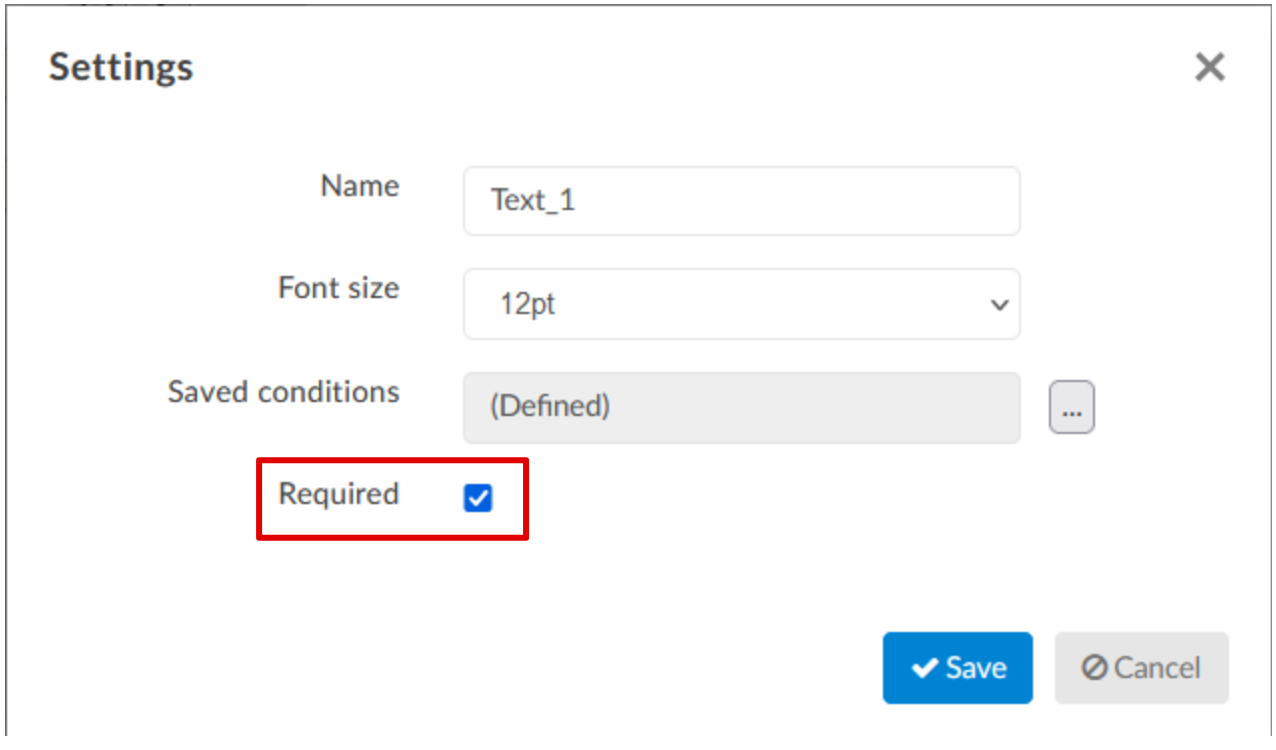
Once you’ve saved the settings for the tag, the tag will no longer have the * red star anymore.
That’s all for how to set up tags. Remember to ensure these steps are taken each time you start a new workflow to minimize the chances of wrongly assigned tags or having mandatory tags in places that should be optional.

Further Readings

Create Electronic Signature Documents for Others
Create an Electronic Signature Template for Easy Document Sending
Publish a Template Link for Online Signing

Using Page View Evidence for Sensitive Documents

Many contracts require signers to confirm they’ve read every page — not just sign at the end. Traditionally this is handled by initialing each page, but Signority’s Page View Evidence feature streamlines this process digitally. When enabled, a checkbox appears at the bottom of every page, which signers must check before they can proceed. Each interaction is then recorded in the document’s audit trail, creating a verifiable record and reducing the risk of disputes over whether terms were reviewed.

Setting Up Page View Evidence On the Recipients Page

When creating a new document for eSignature, you can enable Page View Evidence directly from the Recipients page.

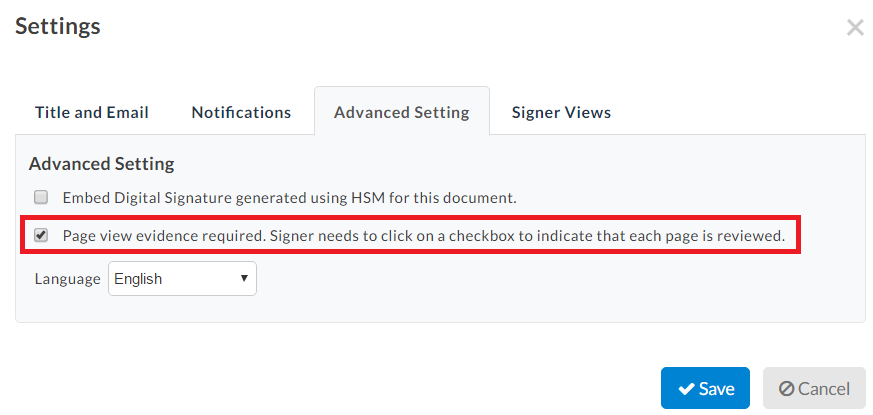
To get started, click +New from your Dashboard and upload your document. On the Recipients page, add your signers and edit the invitation email if needed. In the right-hand panel, you’ll find several settings sections — scroll down past Notification Delivery, Invitation Email, and Recipient Reminders to reach Recipient Settings. There you’ll see the Page View Evidence Required option — check it to enable the feature for this document.

Note: You can also enable this later in the Document Editor if you prefer to set it up there.

Setting Up Page View Evidence On the Document Editor

The Document Editor lets you enable Page View Evidence whether you’re editing an existing document or building a template. This makes it the go-to place for managing the setting outside of the initial document creation flow.

In the Editor, click Edit next to Settings on the left panel and open the Advanced Settings tab. You’ll find the Page View Evidence Required toggle there. Enable it if you haven’t already done so on the Recipients page, then finish adding your Tags and click Next to send the document for signature.

Turning on Page View Evidence from Editor Page

What Signers Experience

For signers, the process is straightforward. As they move through the document, they’ll see a checkbox on each page with the prompt “I have read the current page.” Once checked, the box is locked and cannot be unchecked. After completing all pages, the signer clicks Submit to finalize.

Viewing the Captured Page View Evidence Information

Once I signer checks that they have read the current page, you can review the Page View Evidence in two places:

  • Document History — shows in real time which pages each signer has read and when.
  • Audit Trail — included in the finalized document as a permanent, verifiable record.

Page View Evidence captured in Document History

Further Readings

The Anatomy of an Audit Trail
Setting Your Default Automatic Reminder and Notification Settings
Track and Monitor Document Status & Workflow

Track and Monitor Document Status and Workflow

One of the biggest benefits of electronic signature platforms is the ability for you, the document sender, to check and monitor the status and history of any document that is in progress. Having a document status tracker is so important in finding bottlenecks to the signing process and knowing exactly who to contact to sign documents.
The status options are divided between the Recipient Status and the Document History. To access these pages, you’ll need to go to the Documents page first, using the navigator bar seen on the dashboard. Select the Documents icon to be redirected. Find the document you want to monitor.

Document Status by Recipients

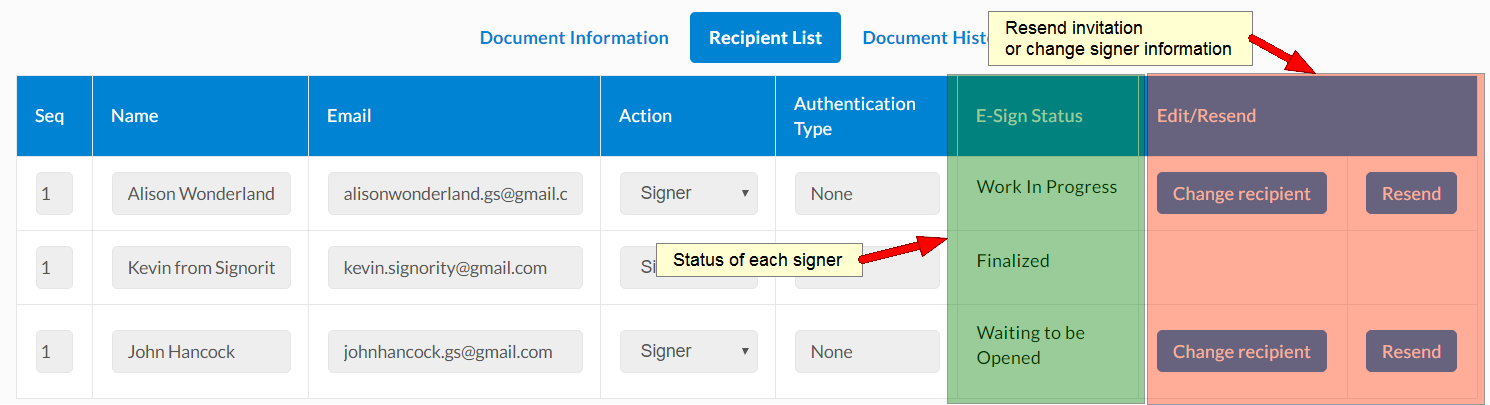
Clicking on the name of the recipients will automatically take you to the Recipient List page, where you can see the status of each signer, and the ability to change signers or resend the invitation email. The status of the signer is listed, so you can know where they are in the workflow and find any major bottlenecks.
document status checking recipient status
As you can see, you can see the status of each signer and what their role and what kind of authentication factors they have.
document status and checking the status of signers

The Document History

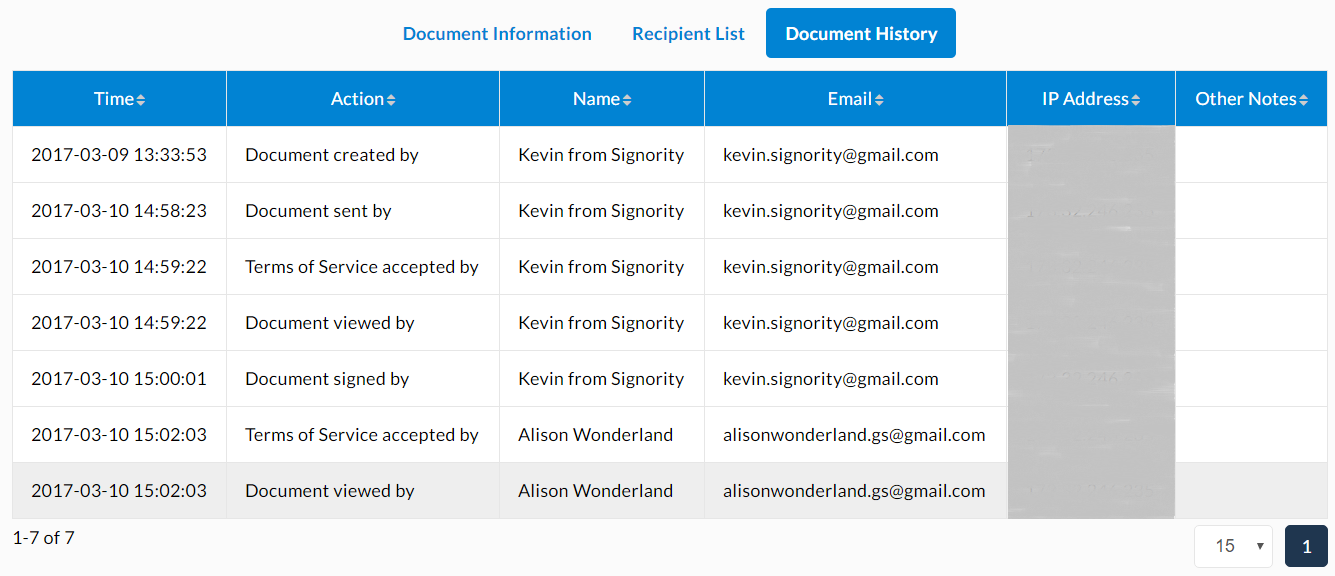
If you’d like more detail beyond the fact that a document is In Progress (understandable!) click on the status or from the Recipient List page, click on the Document History tab to be shown the history of the document.
document status checking document history
The detailed document history page will display:


Note: the information listed in the document history page will be added to the completed document PDF as an audit trail.

Further Readings

Creating and Managing a Document Deadline
Setting Notification Reminder and Deadline Options for New Documents
Whitepaper: The Benefits of eSignature

Sign Documents Online as Recipients

Signority makes it easy to sign documents online as a recipient, simplifying the signing process to be as seamless and easy as possible!
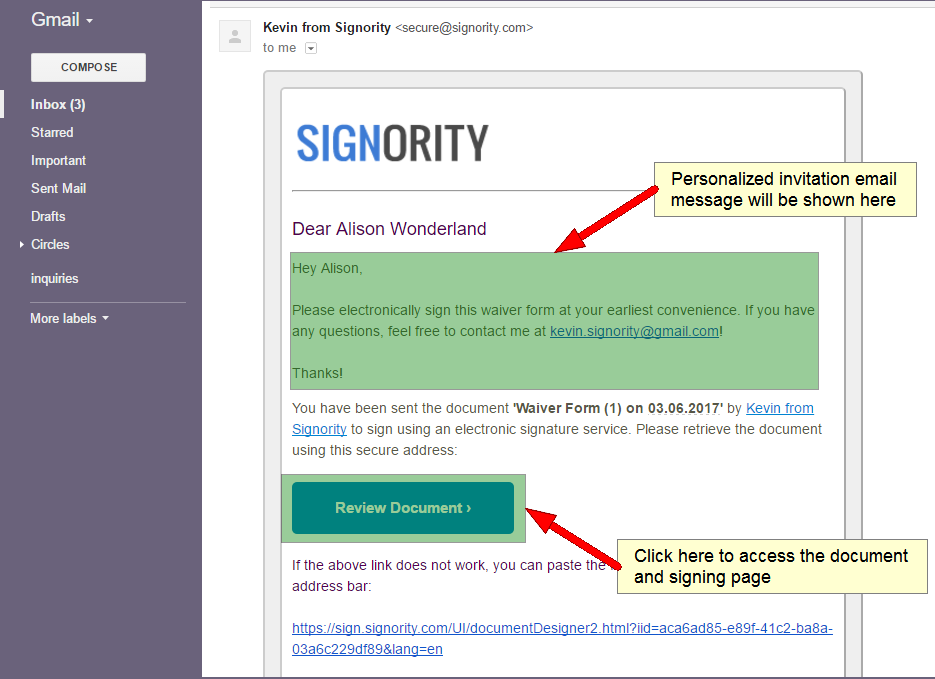
With all our workflows, whenever a Signority user sends someone a document to sign electronically, they will receive an invitation email. When you get the email, just click on the Review Document button to be re-directed to the signing page.
invitation for electronically signing document as a recipient

Step by Step to Sign Documents Online as a Signer

  1. Accept the Terms of Service so you can access the document.
  2. Once you’re on the document signing page, use the Using the Next button, navigate through the document button to navigate through the document.
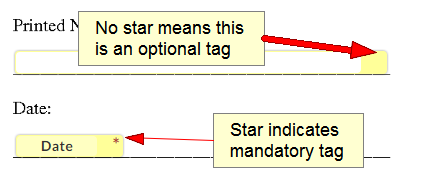
  3. Enter your information in the tags you see. Any tags with a red start indicate that they’re mandatory and must be filled. You will not be able to complete and submit the document without filling in ALL mandatory tags!

the difference between optional and mandatory tags when you sign documents online

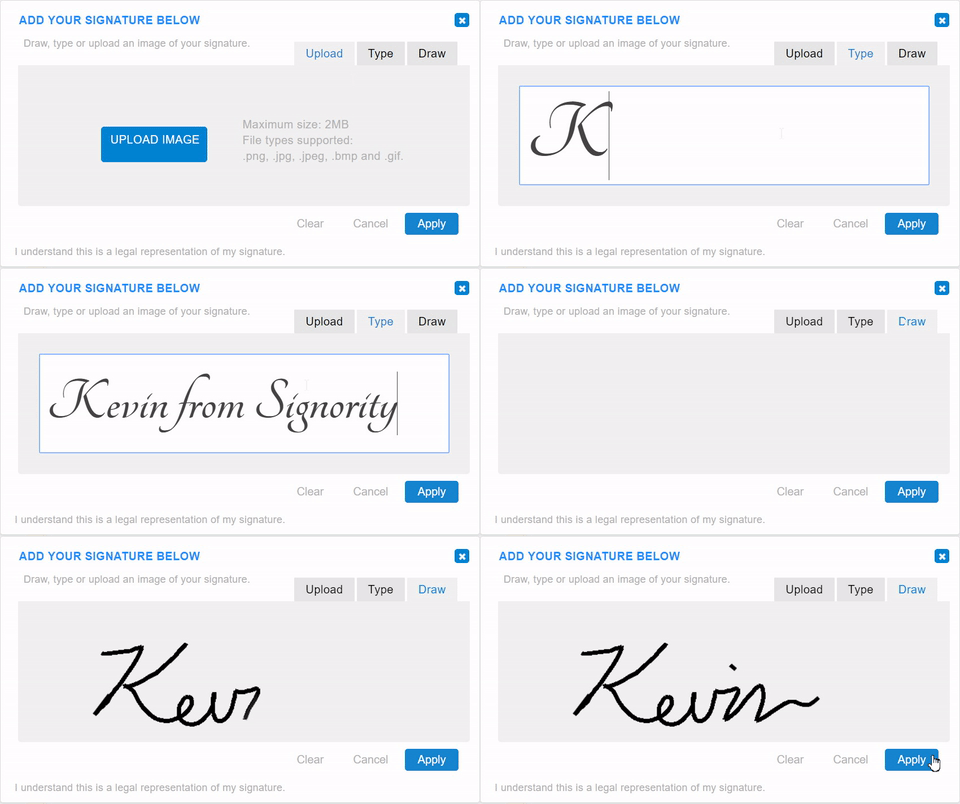
  1. Continue through the document. When you get to the signature tag, you’ll have a few options:
    • Draw your signature using a touch pad/screen or using a mouse
    • Type your signature with a keyboard
    • Upload a scanned copy or picture of your signature from your computer or phone

How to use the signature tags for upload, type, or draw

  1. Once you’re finished filling in all of the information, review the information and “Submit” the document. And just like that, you can sign documents online with minimum effort and requires no scanning or emailing! 

Once the document is finalized by all of the signers, you will be notified via email with an attached copy of the finalized document for safe keeping.
Want to learn how to create electronic signature documents for others? Start collecting your own electronic signatures today!

Further Readings

Electronically Signing Documents for Yourself
Rejecting Documents as a Signer
Switching Signer Responsibilities to Another Person

Electronically Signing a Document for Yourself

You can sign documents for yourself in Signority using the standard document creation workflow. The only key difference is that you add yourself as a recipient so you can immediately complete the signing process after sending the document.

If you haven’t already set up your signature, we strongly recommend first completing setting up your default signature. Once configured, your saved signature will be available for faster and more efficient signing across documents.


How to Sign a Document for Yourself

  1. To begin, open Signority an click + New in the header and select New Document.
  2. On the Upload page, upload your document from your device, then click Next.
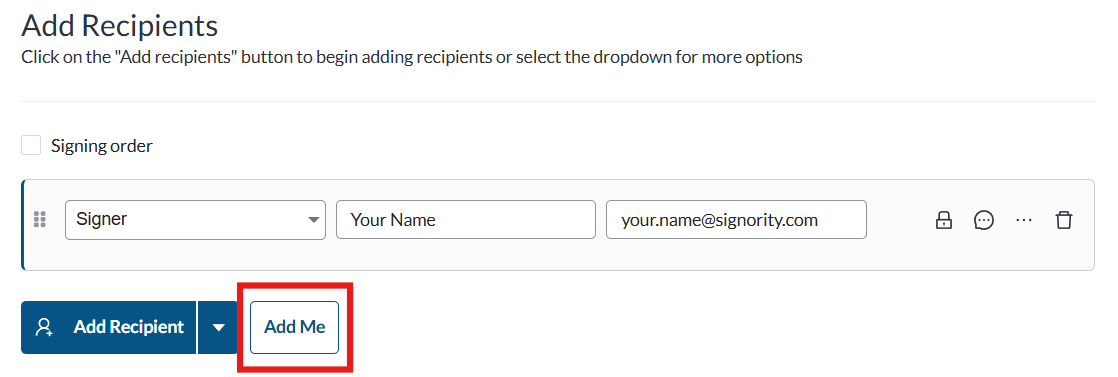
  3. On the Recipients page, click Add Me to add yourself as the signer. Signority will pre-populate your information as the recipient’s information.

    After adding yourself, disregard the rest of the Recipients page. You do not need to customize a message or set a reminder schedule because you are the only signer and you will be re-directed directly to the signing page.

    When you’re ready, click Next to go to the Editor.

  4. In the Editor, place your tags where needed. You can prefill most fields at this stage.

    Add a text tag and fill it in as you go
    Note:

    Signature, Initials, Attachment, and Stamp tags must be completed during signing.

  5. Once you’ve added all the tags and have filled them in, click on Send in the top right.
  6. On the confirmation screen, click Add My Signature to open the signing page immediately.
  7. Complete any remaining fields and click Finished in the top-right corner to finalize the document.

You will receive an email with the final copy or you can download it directly from your Documents page.

Need other signatures? Check out our tutorial on creating electronic signature documents for others here.

Further Readings

Creating and Using Templates for Electronic Signature Documents
Overview of Tags

Notification Reminder and Deadlines Options for New Documents

When you’re sending out a document, Signority can automate notification reminder emails to signers and send you email updates on the status of a document. You can always set your default automatic reminders and notifications from your Account Settings but there may be times when you need to set specific settings for individual documents.

Customizing Notification Reminder Settings for New Documents

Begin by creating a New Document using the +New button. The process is the same as creating electronic signature documents but with a few minor differences.

  1. Upload a document you need signed
  2. Add Recipients and specify their names and emails. Customize the Invitation Email and Document Settings.
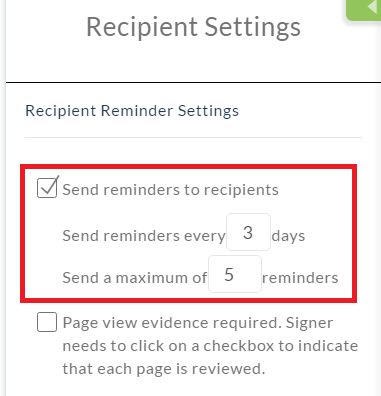
  3. In the Recipient Reminder Settings, you can start by setting your notification reminders schedule.

Change Notification Reminder Schedule from Recipient Settings Page

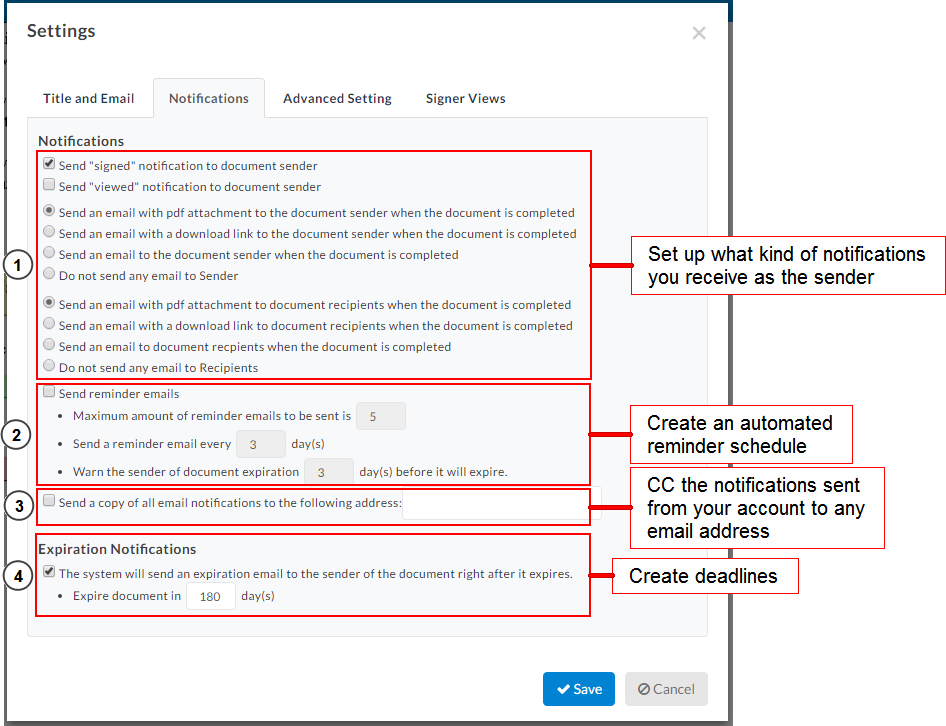
  1. In the next step on the Editor page, go to the Settings next to the Document Title in the top left. Go to the Notifications tab.

Editing Notification Reminder Options for New Documents

  1. When you’re done, click Save and add Tags to the document before sending it out for signature.

Overview of Options for Notification Reminders

In the first section, you can set what kind of notifications you wish to receive. Get notified for the following:

  • When a document is opened and viewed by a signer
  • When a document is signed by a signer
  • What’s included in the finalized email

In the next section, set up your automatic reminder schedule. Specify the following:

  • How many reminder emails should be sent in total
  • How frequent those reminder emails should be sent
  • When to warn signers about the document deadline

In the third section, you can copy all notification reminder emails to a specified email address of your choice. This lets you record all the interactions with your signers.
And in the final section of the Notification Settings, create a document deadline and specify how long the document is valid for.
Signority sends reminder emails to recipients every few days until they’ve signed the document or they’ve been reminded the maximum amount of times. If the document is completed, they will also stop receiving emails for the document as well.
Most documents sent through Signority are signed within hours or a few days of being sent, but just in case there’s a little delay, it’s always safe to set some reminders & deadlines.

Further reading

Track and Monitor Document Status & Workflow
Change Signers and Resending Invitation Emails
Benefits of eSignature

Publishing Template Links for Online Signing

Signority’s Template Links help expedite applications by making forms available online. Creating and publishing Template Links will generate an URL link that can then be used anywhere online – in emails or on your website.

Creating new Template Links

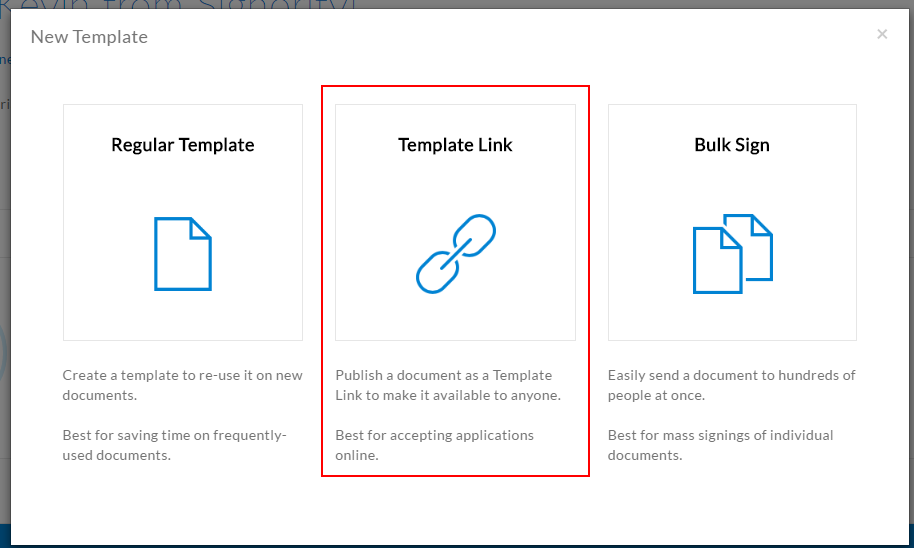
To create a Template Link, click +New and then New Template. When prompted, select the Template Link option.


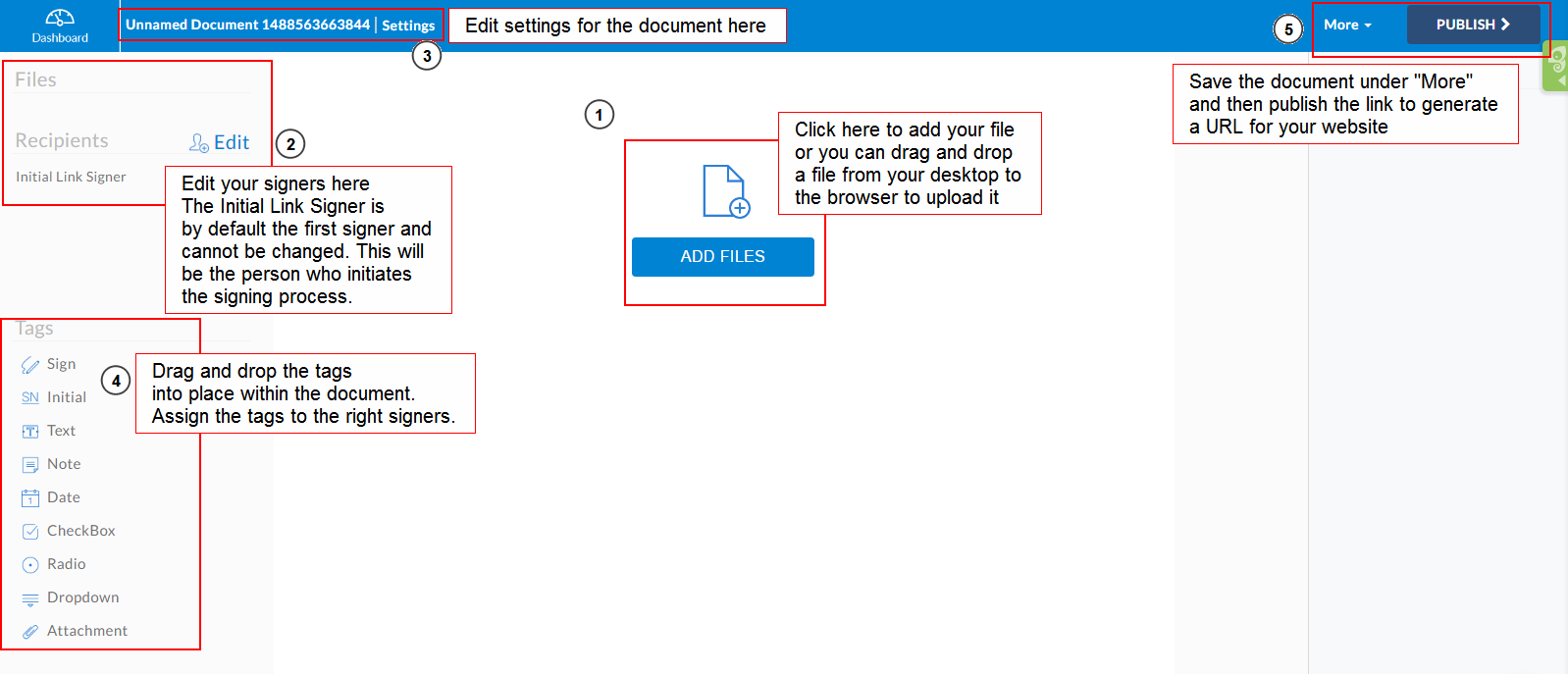
You’ll be redirected to the Editor page, same as when creating a template. As with a Regular Template, you’ll need to Add Files to create the document. When it’s successfully uploaded, the document should be visible on the editor.
Template link editor page with annotations
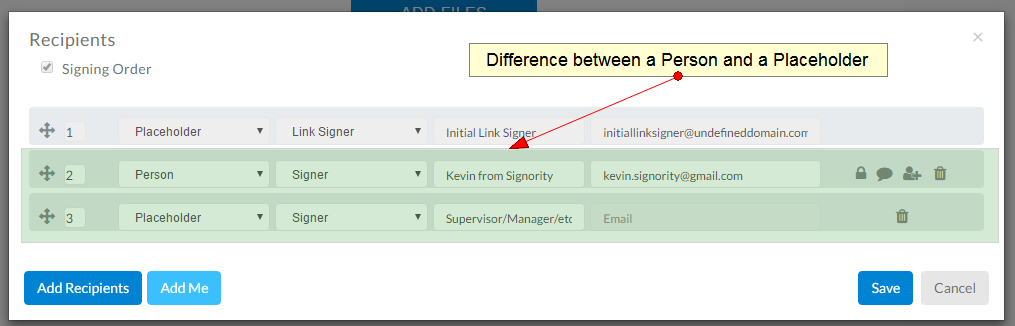
Unlike with a Regular Template, instead of Roles or Signers, you’ll notice that the first signer is already designated as the Initial Link Signer. This is the person who clicks on the generated URL to access the document and initiates the signing process. Also, when adding other signers, you can set them as either a Person or a Placeholder. As shown below, a Person is a specific signer, with their name and email. A Placeholder is a signer that only the initial link signer knows. So for example, if you, as the template link creator, does not know the signer’s manager information, you can make the Manager a Placeholder and let the Initial Link Signer enter their own manager’s name and email to continue the workflow.
the difference between a signer and a placeholder
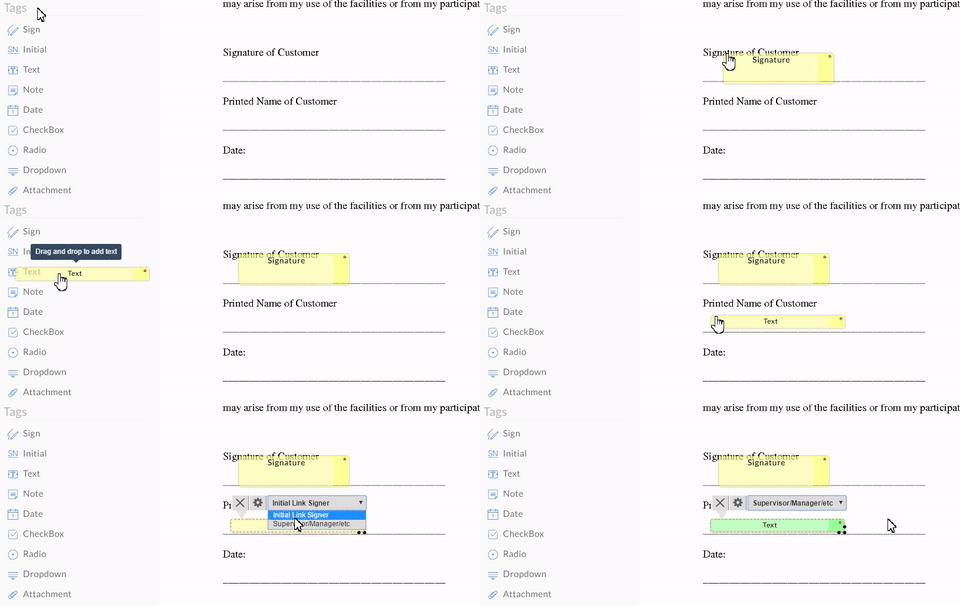
When you’re done with the recipients, you can edit some of the document settings as well in the Settings button in the top. Finally, when you’re finished with the setup, drag and drop the needed tags and assign them to the right signers.
adding and assigning tags in published template links
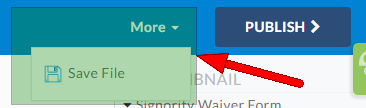
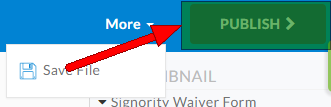
When you’re done tagging the document, click More to Save File before clicking on Publish to generate the URL.

Save your template link before publishingpublish the template link to generate URL

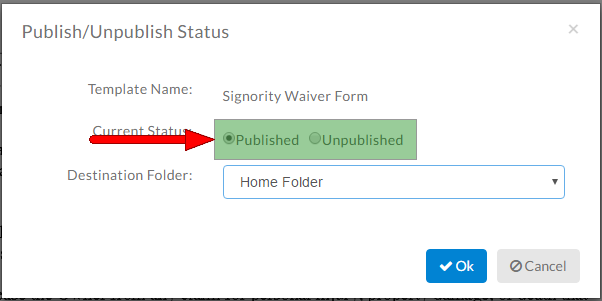
Once you’ve clicked Publish, you’ll get a pop-up to change the Current Status of the link. Make sure it’s set to Published and then click OK.
change the status of the template link to be published
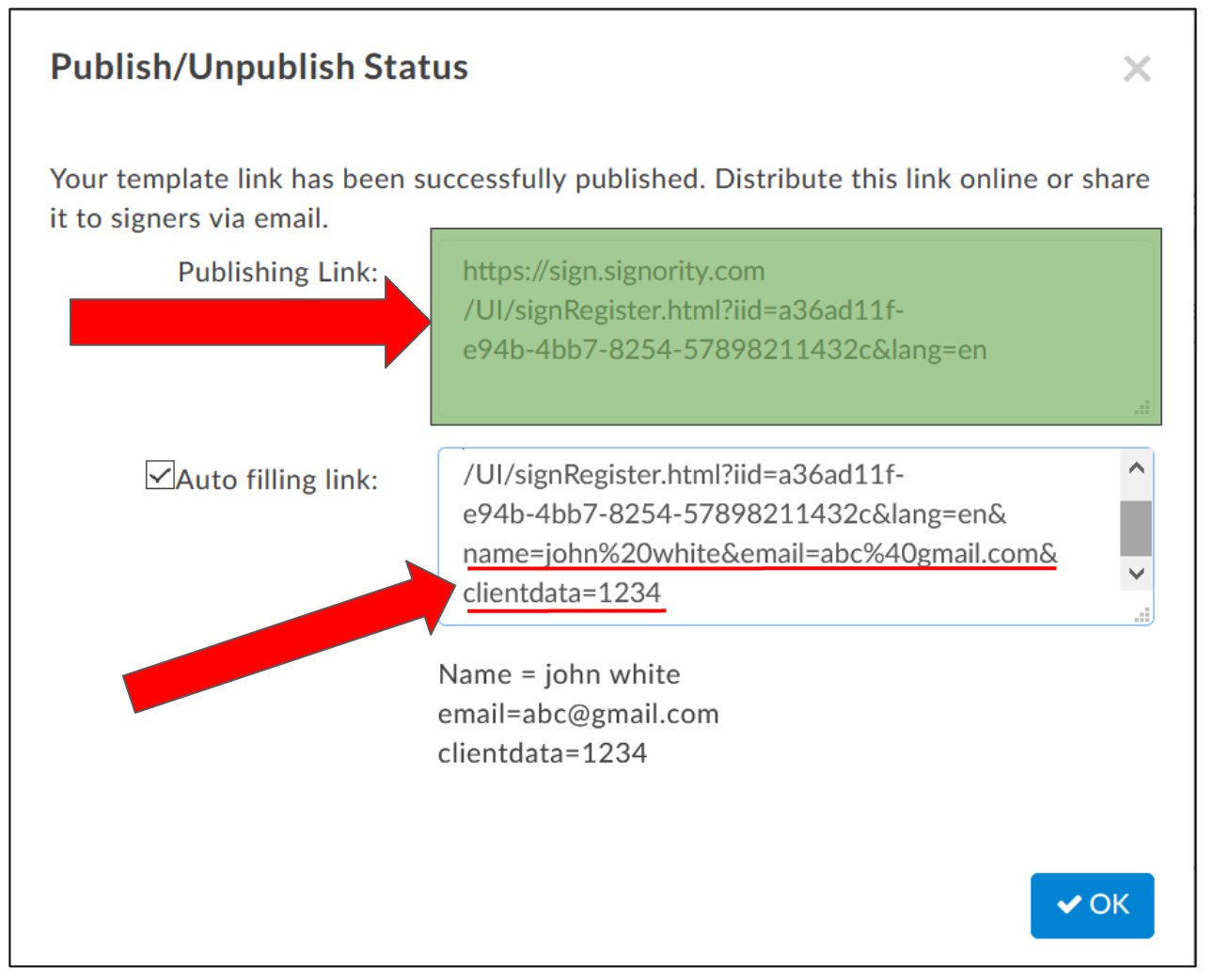
Then copy the Publishing Link and use that URL to embed to your website or emails. If you are sending the link to a specific person, you can use an Auto filling link. This option allows you to automatically populate the signer’s information into the form so that they don’t need to fill it out after clicking on your link.


And that’s it, with your Publishing Link URL, there are a ton of things you can do with it, such as streamline your employee onboarding, embedding the form into an iFrame on your website, or just simply collect simple forms, like liability and waiver forms.
For more details, check out the video below!

For further reading
Bulk Send Documents for Signing
Customizing Company Branding Settings
Notification Reminder and Deadline Options for New Documents

Creating a Regular Template

Regular templates are pre-prepared documents that can be sent to signers whenever needed. Best for saving time on frequently-used documents.

Create a New Regular Template

  1. In Signority, on the top header, click +New > New Template > Regular Template.

    Note: Unlike when you are creating a document, you will be brought directly to the Editor page to design the template.
  2. Upload your file by selecting the Add Files button in the middle of the document editor.
  3. Adjust settings for the document by clicking Edit next to ‘Settings’ on the left panel. A pop-up will appear where you can customize the settings for the template. Some of the settings you can define are:
    • Title and Email: Customize the name for the template and customize the email settings.
    • Notifications: Modify the notifications for the template.
    • Advanced Settings: Enable page view evidence
    • Signer Views: Define what recipients are able to view.
      Note: Settings defined for a template will become the default settings for the document.
  4. Add recipients to your template by clicking on Edit next to ‘Recipients’ on the left panel. For regular templates, instead of adding the signer’s name and email like you would with a document, you can define a recipient role, such as ‘Client’, ‘Supervisor’, or ‘CEO’, so you know whose name and email will be assigned to that recipient when using the template. Their specific name and email can then be added when you use the template.
    Note: If you want signers to sign the document in a specific sequence, add a signing order.
  5. Add tags to your document and assign them to the correct role by selecting the tag and using the drop-down. Continue adding tags through the rest of the template.
  6. Once you’re done creating your template, review it to make sure everything is correct before either saving the template for later or using it right away.

You can access all of your templates by going to the templates page if you ever want to use or edit them.


Further Readings

Track and Monitor Document Status & Workflow
Publishing Template Links for Online Signing
Setting Up Documents with Witness Signers