Team Admin Dashboards
User Dashboard
The User Dashboard is the Dashboard you see when you first sign into the Signority platform.
The Team Admin is responsible for the teams assigned to them.
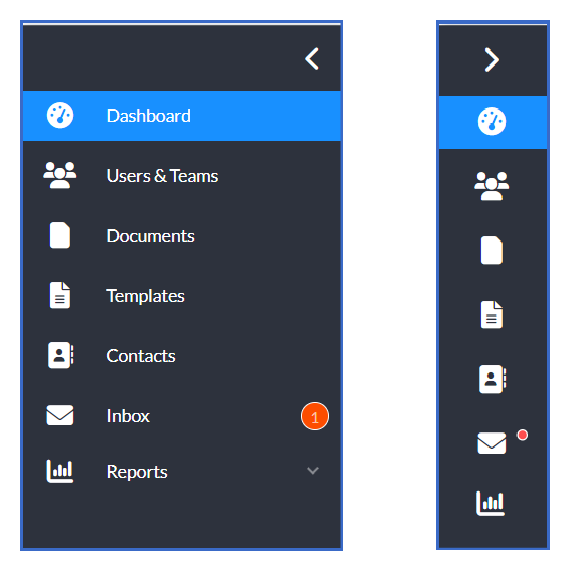
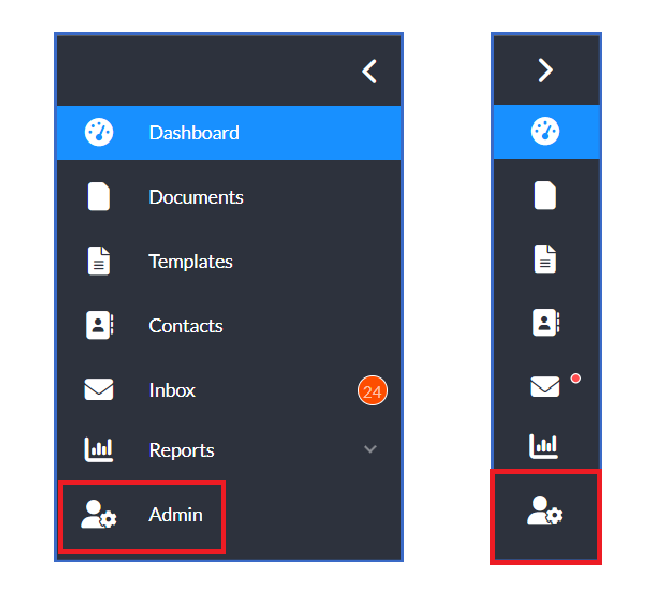
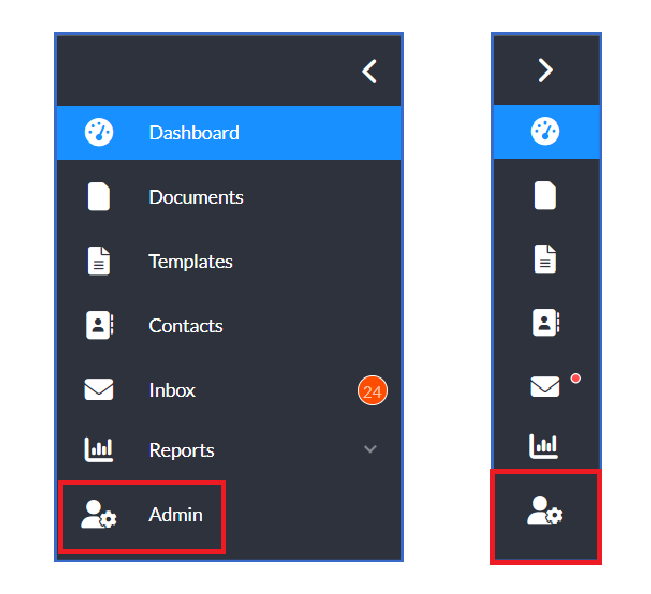
On the left of your screen you will see the left hand sidebar menu. You can either keep the menu expanded as below or collapsed as seen below, using the arrow on the top right to the menu.
The Team Administrator’s Dashboard has four rows of tiles in the new look.
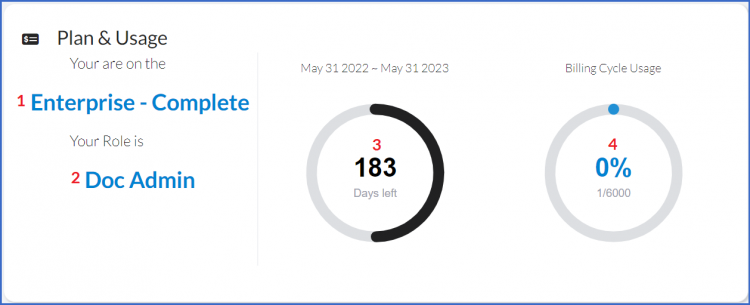
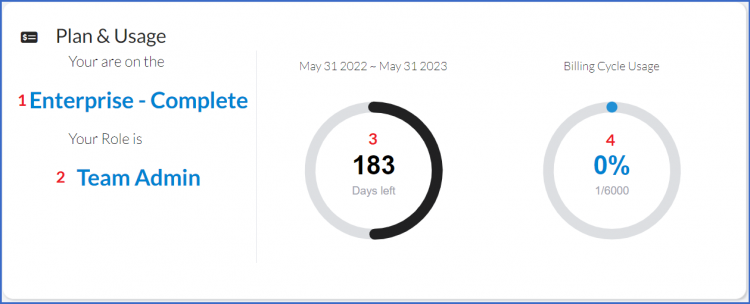
The top tile is your Plan & Usage tile. Seen below it contains the following subscription information:
- Your subscription Plan
- Your role in the plan
- How many days are left in your paid subscription period
- How much of your document packages have been used
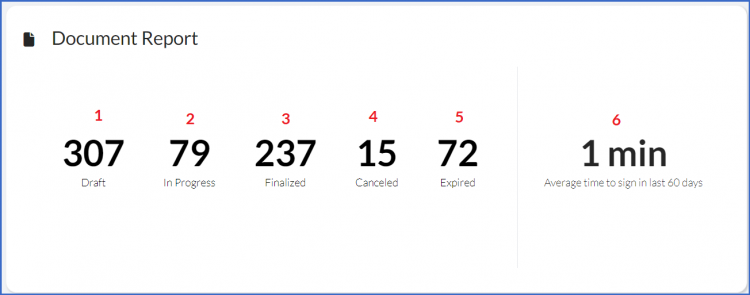
Under your Plan & Usage Tile you have the Document Report Tile. This tile shows you how many documents you have in each of the listed categories.
- Draft: New Documents that you have started but not yet sent.
- In Progress: Documents that have been sent for signature but have not been completed yet.
- Finalized: Documents that have come back with all requested signatures.
- Cancelled: These are documents that you sent for signature but you had a reason to cancel it during the workflow.
- Expired: These are documents that have been sent for signature and have expired before they were finalized.
- The amount of time, on average, it has taken for a document to be finalized in the last 60 days.
The next set of tiles will show you your:
- Most recently used Templates
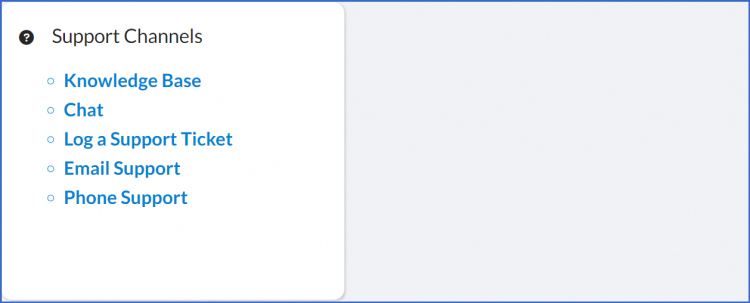
- The Support Channels tile.
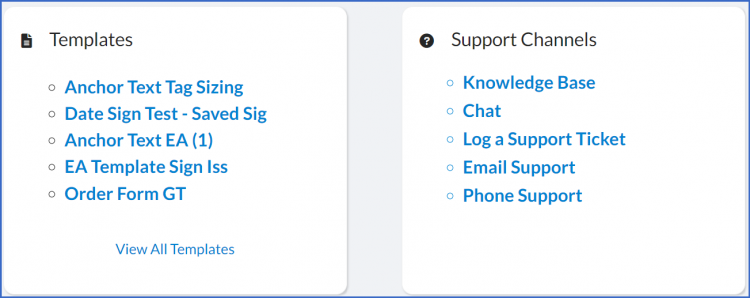
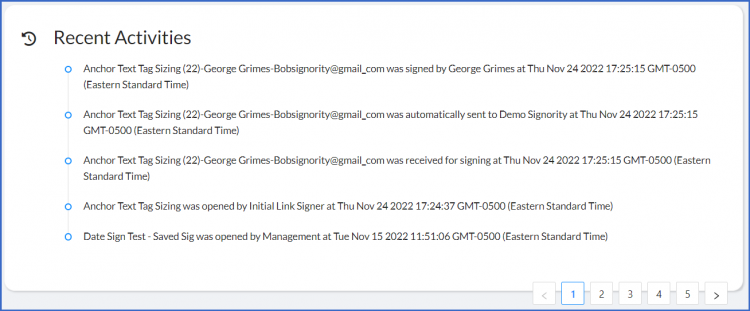
Finally you will see your Recent Activities tile.
Team Admin Dashboard
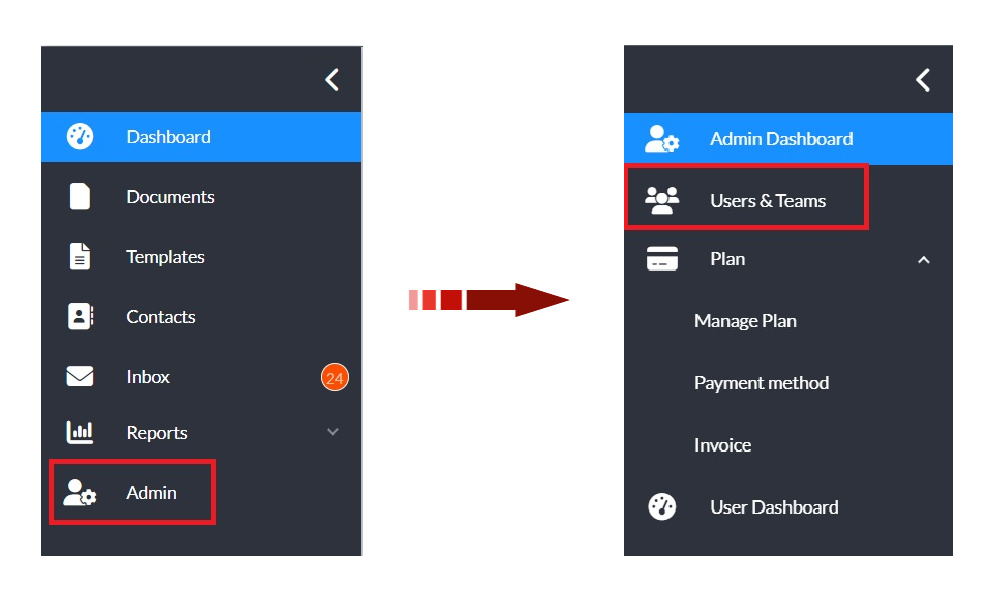
To access the Team Admin Dashboard click on the Admin Icon in the left hand sidebar.
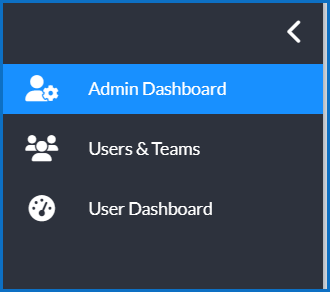
Once in your Team Admin Dashboard you will notice that your left hand sidebar menu has changed. In this sidebar you will see:
- Admin Dashboard – highlighted in blue because that is where you are.
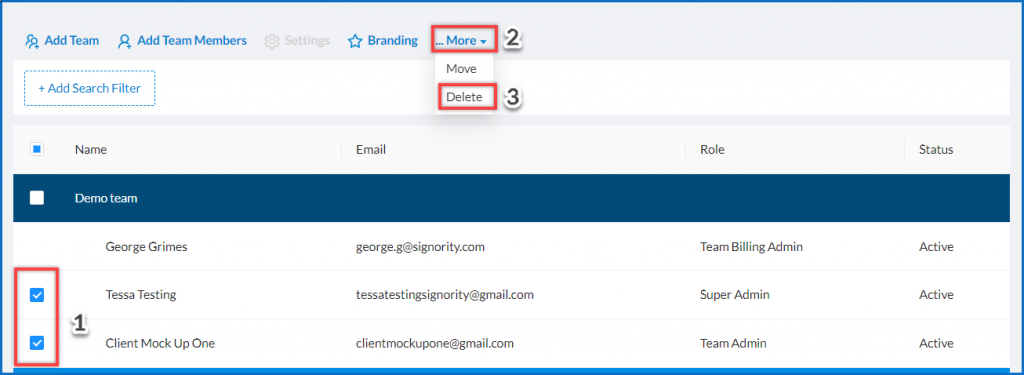
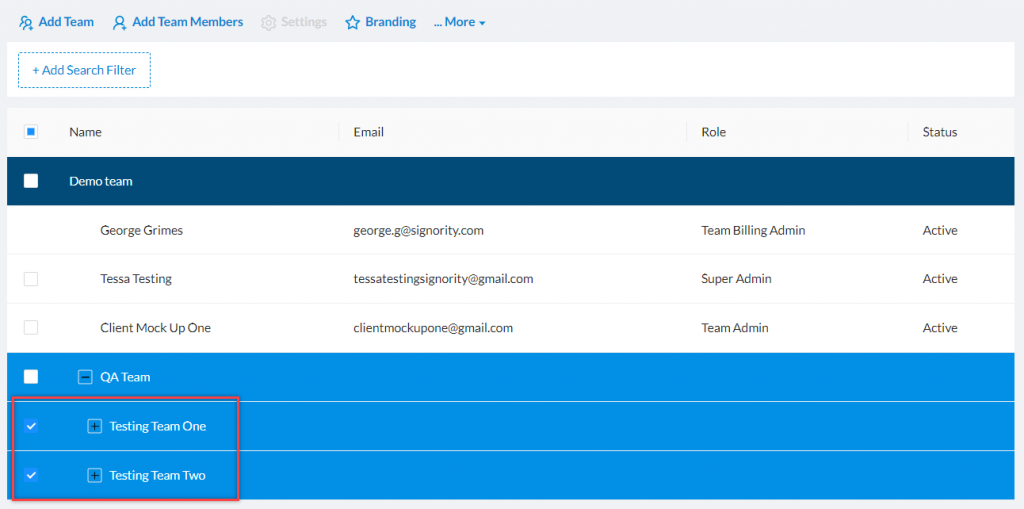
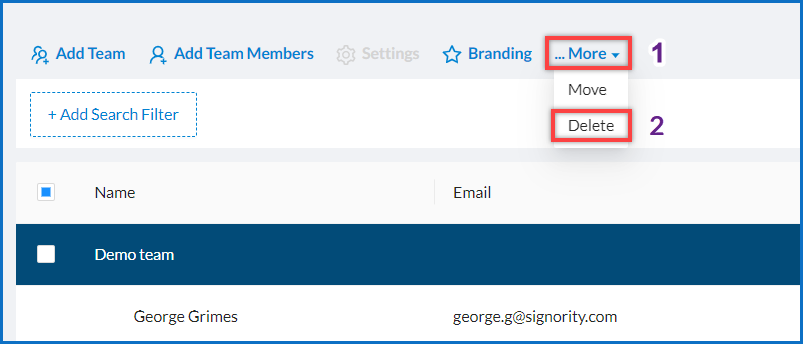
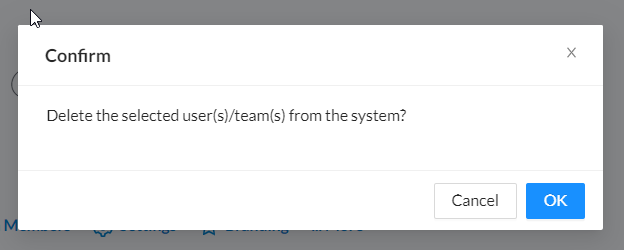
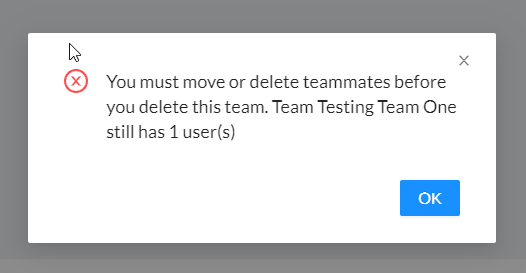
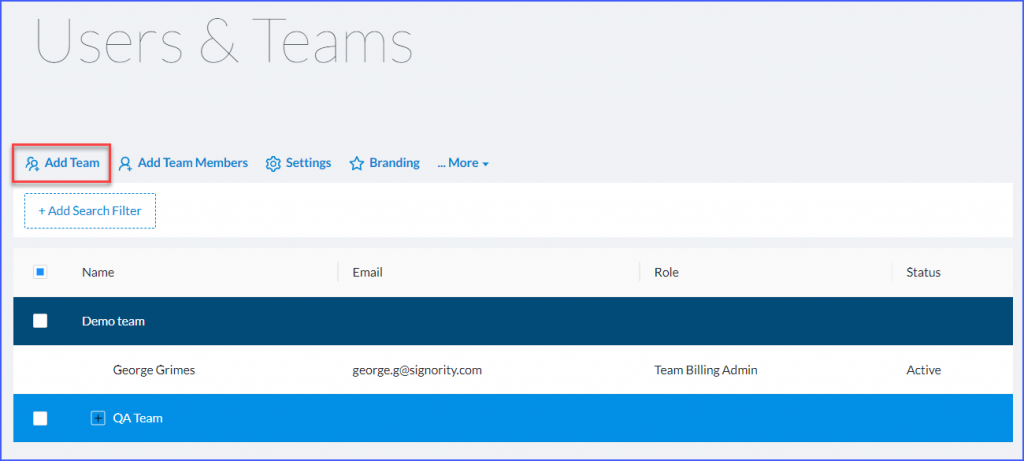
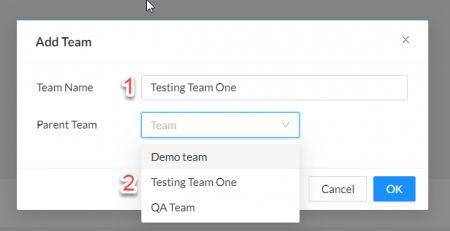
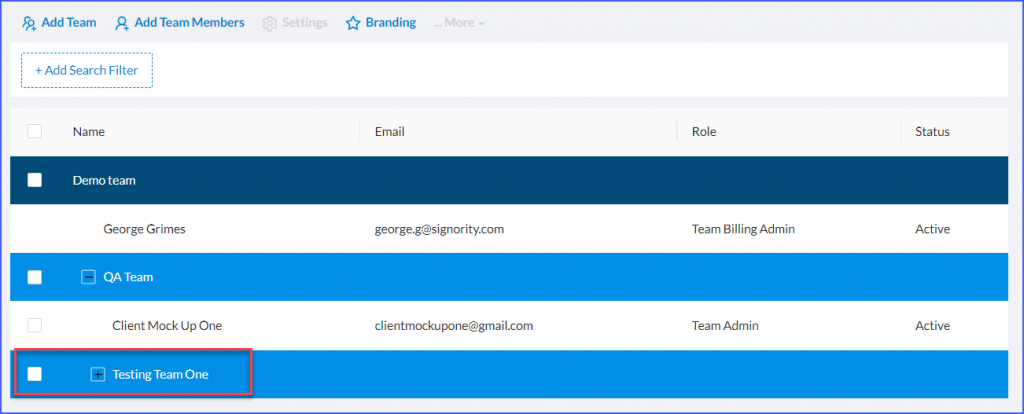
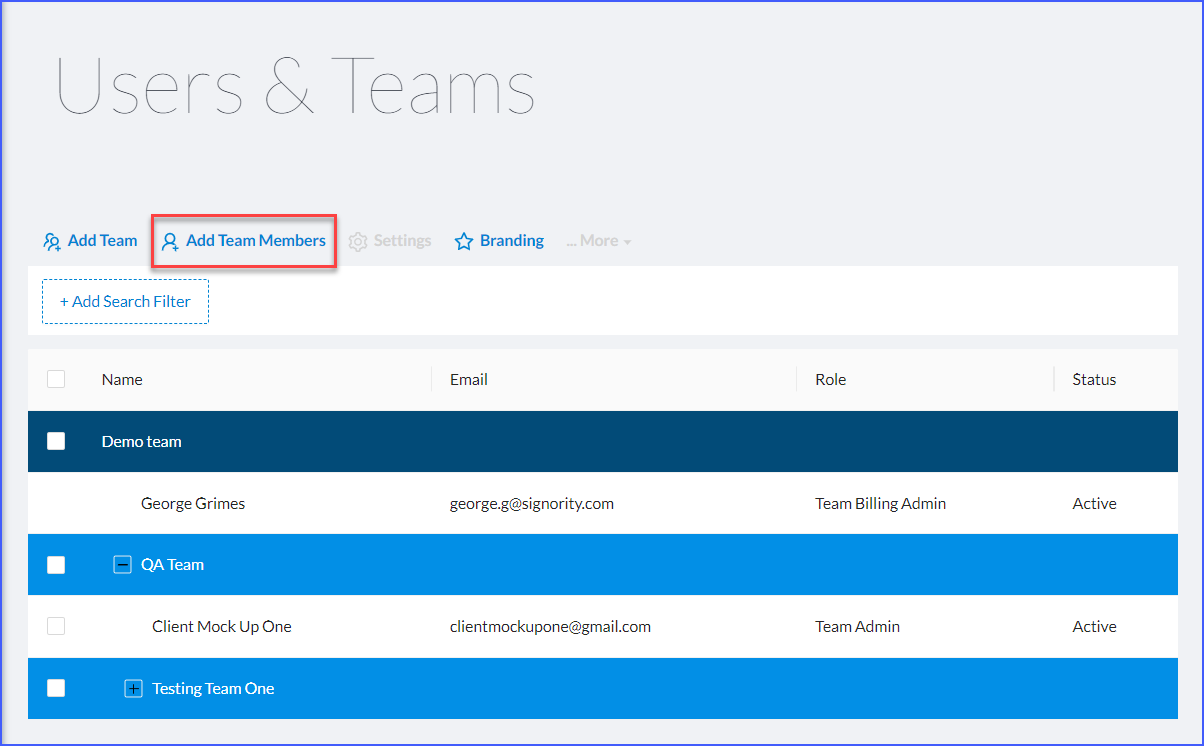
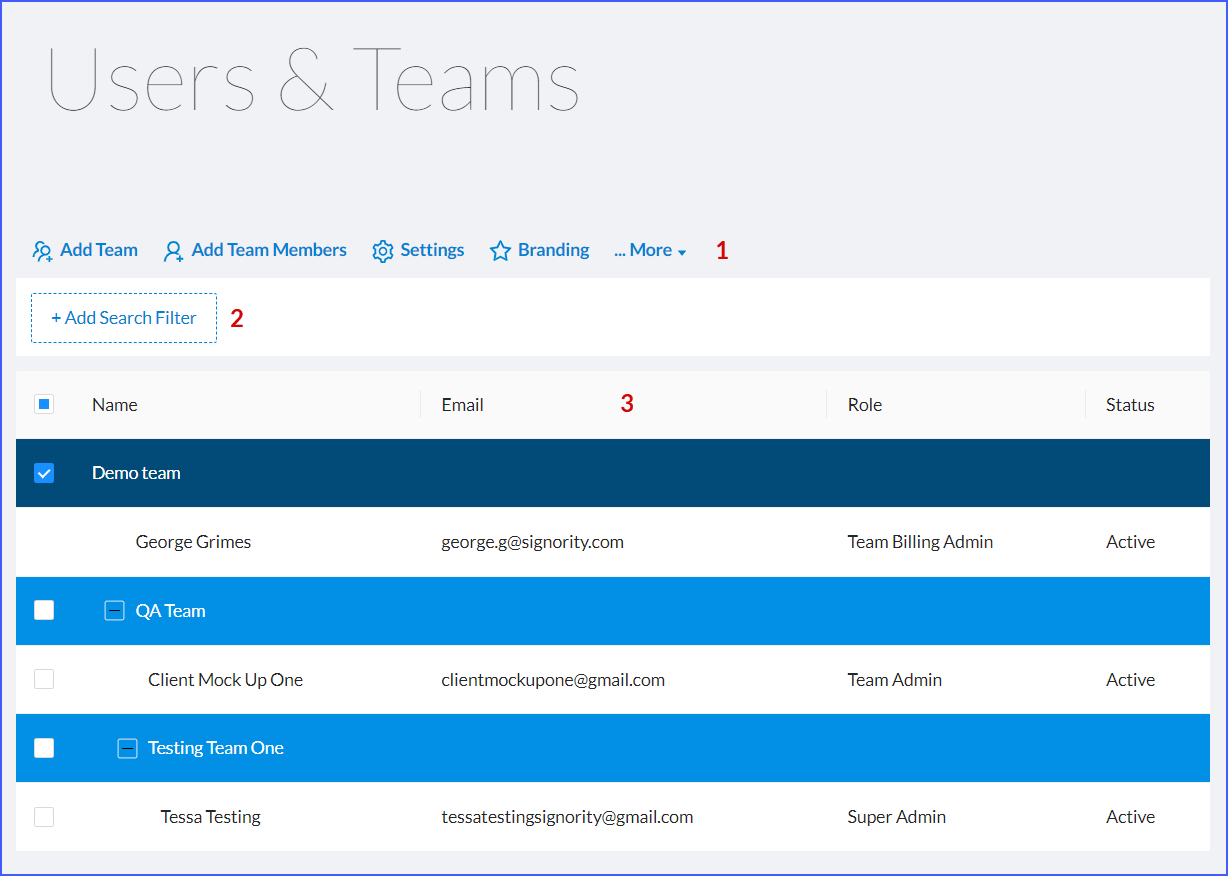
- Users & Teams – where you can update, add, or delete users and teams.
- User Dashboard – that will take you back to your main user dashboard so you can send and track documents and templates.
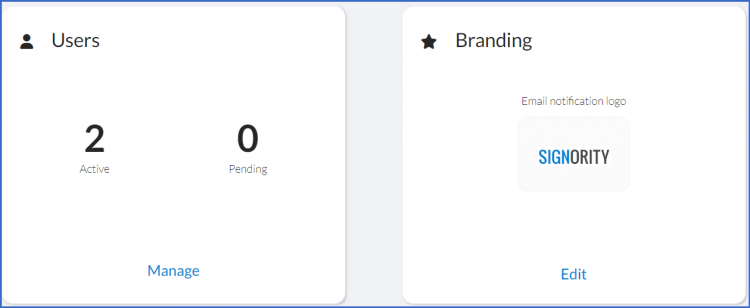
In your Team Admin Dashboard you will see that underneath the Plan & Usage tile and the Document Report tile you now have a Users Tile and a Branding Tile.
And below this you will have the Support Channels tile.
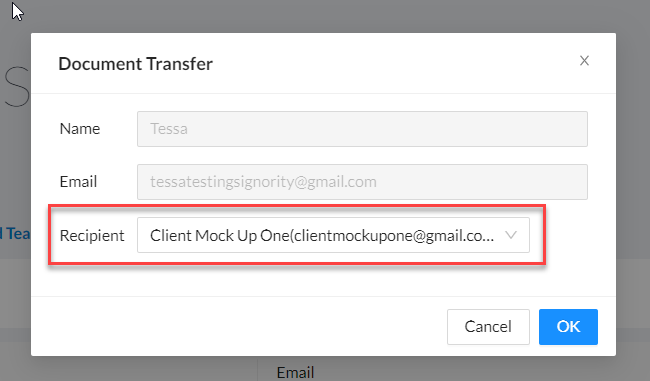
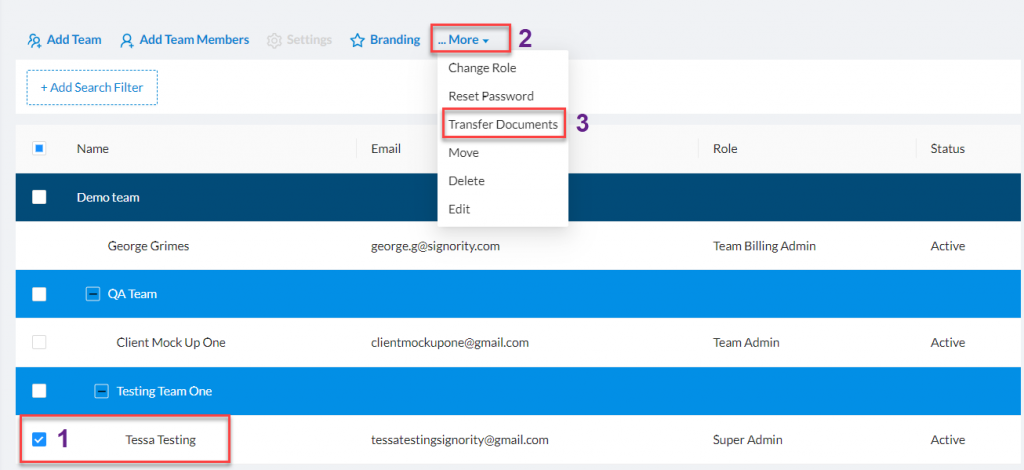 In the modal window select a user to transfer the documents to in the Recipient drop down menu and select OK.